Quiz maker with your own scoring and a result for every score
Write the questions yourself or describe the quiz to the AI assistant. Decide what each answer is worth, write a result page for each score range and share one link or QR code. Pollsar adds up the points and sends every participant to their result.
How a scored quiz works: one example
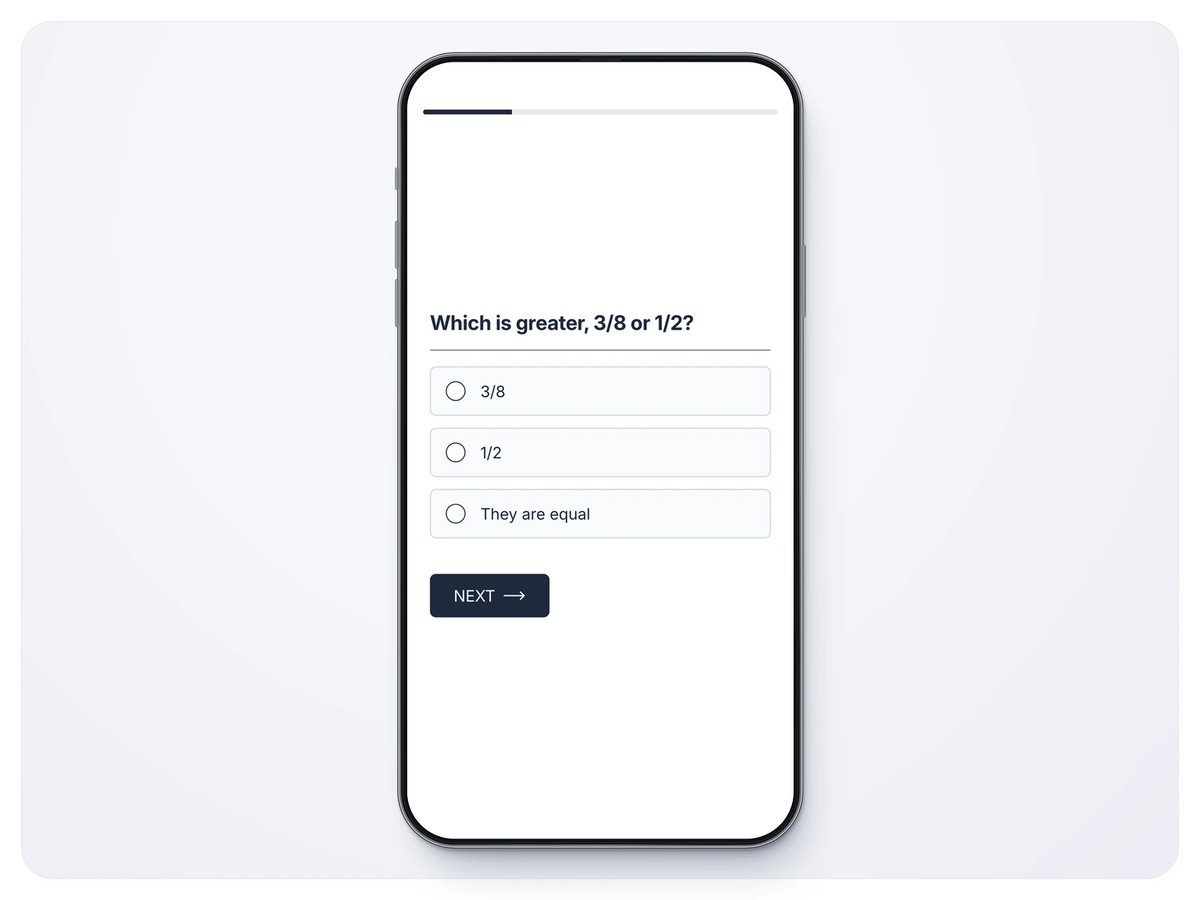
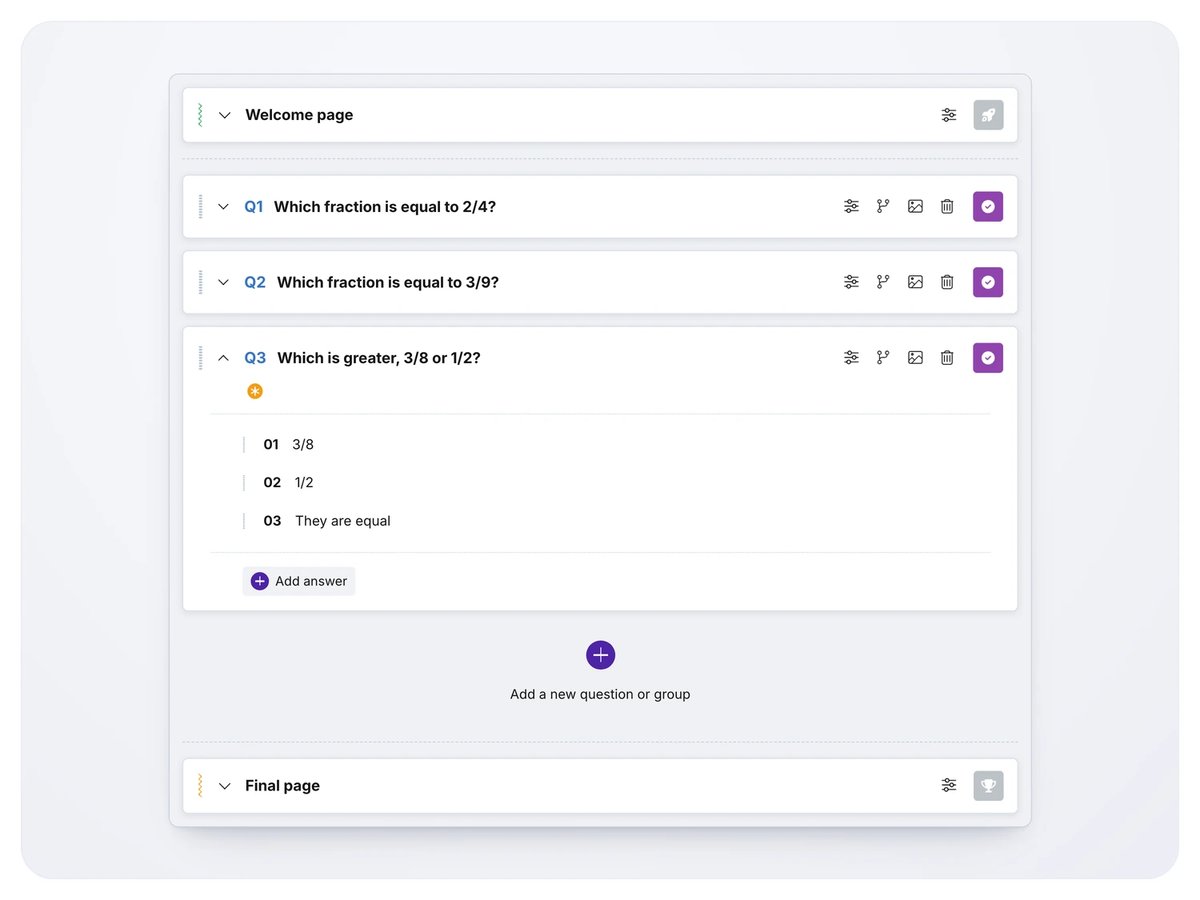
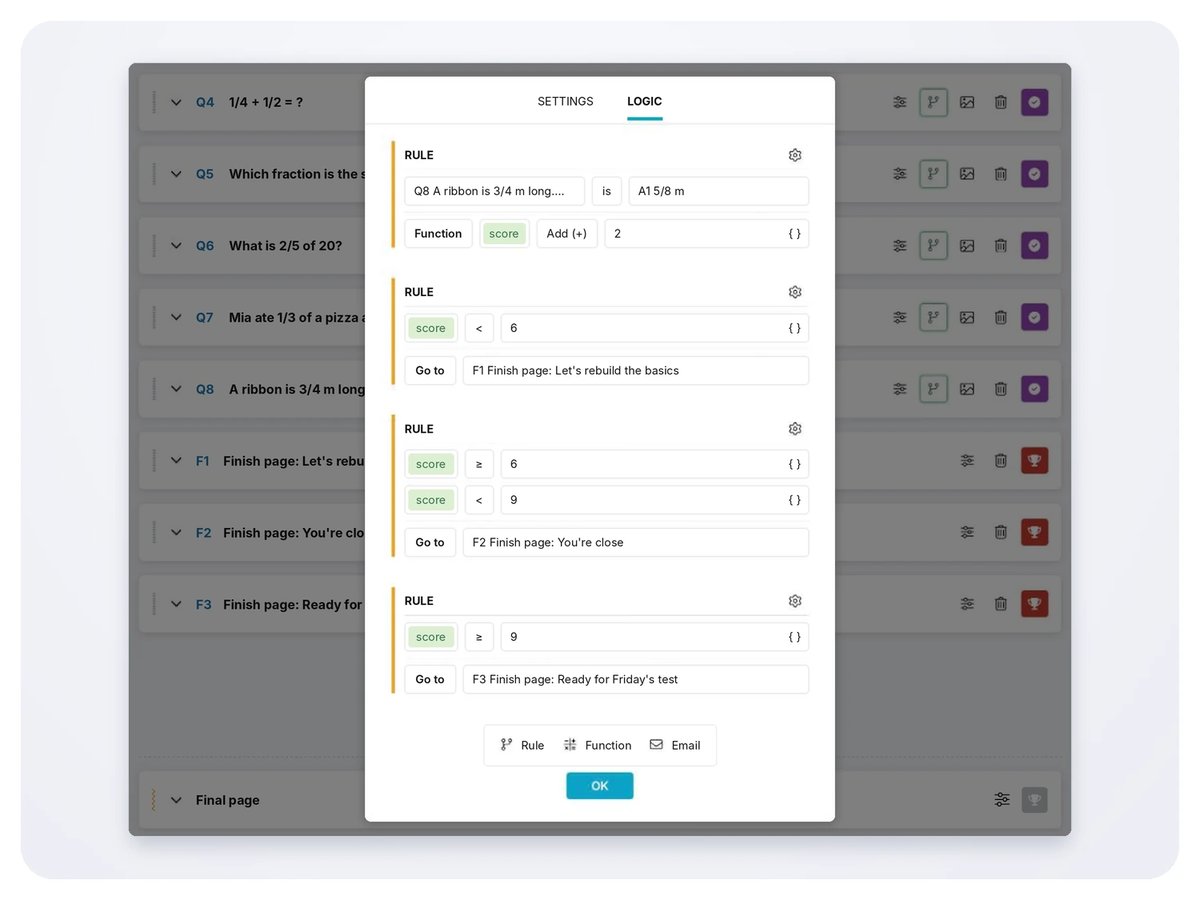
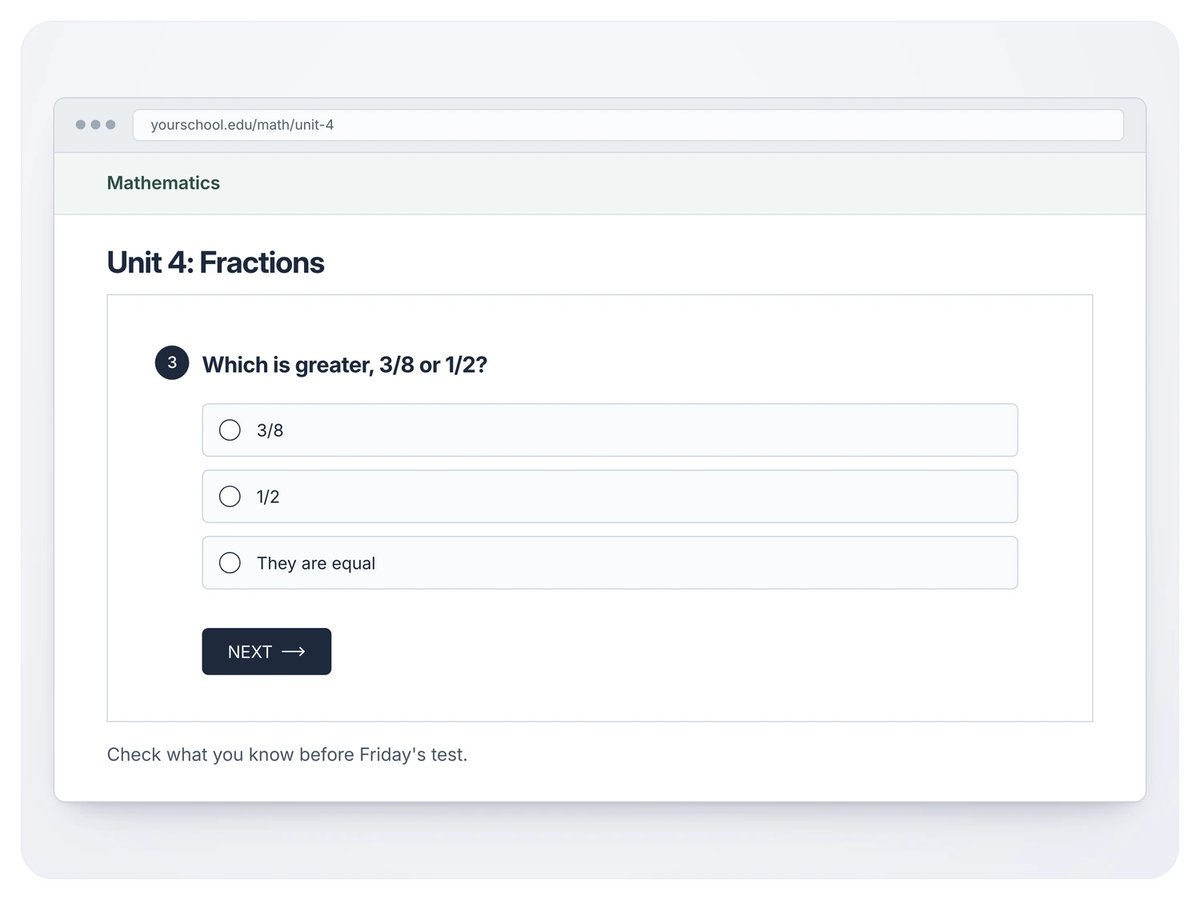
Take a sixth-grade teacher’s “Fractions check-in”: 8 questions, 10 points. Question 3 asks “Which is greater, 3/8 or 1/2?” A rule on the question says: if the answer is 1/2, add 1 to score. Questions 7 and 8 are word problems, so their rules add 2. A rule can also take a point away, and Pollsar keeps the running total in a variable called score.
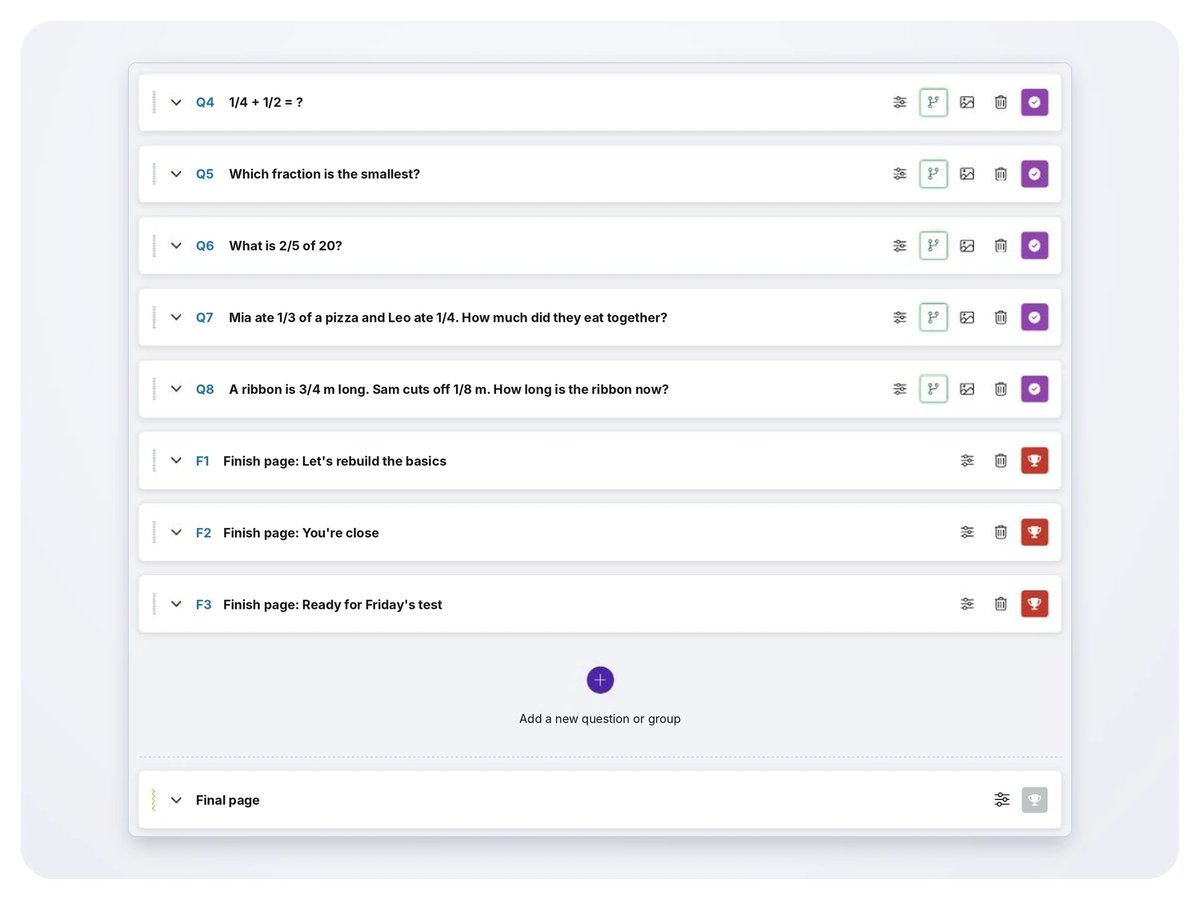
The teacher adds three finish pages and three routing rules on question 8: less than 6 goes to F1, 6 or more but less than 9 goes to F2, and 9 or more goes to F3. Every total from 0 to 10 has its page, and because the ends are open, a total you didn’t plan for still lands somewhere.
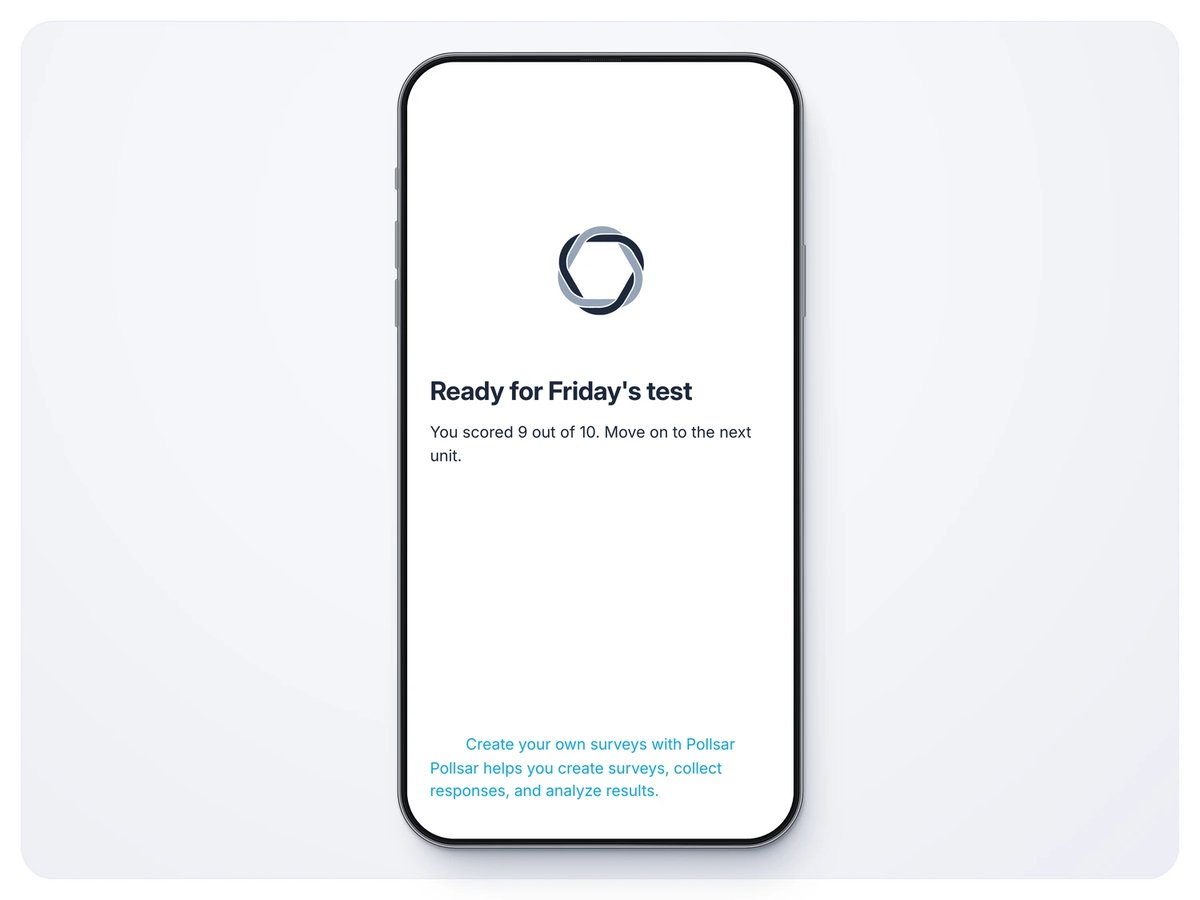
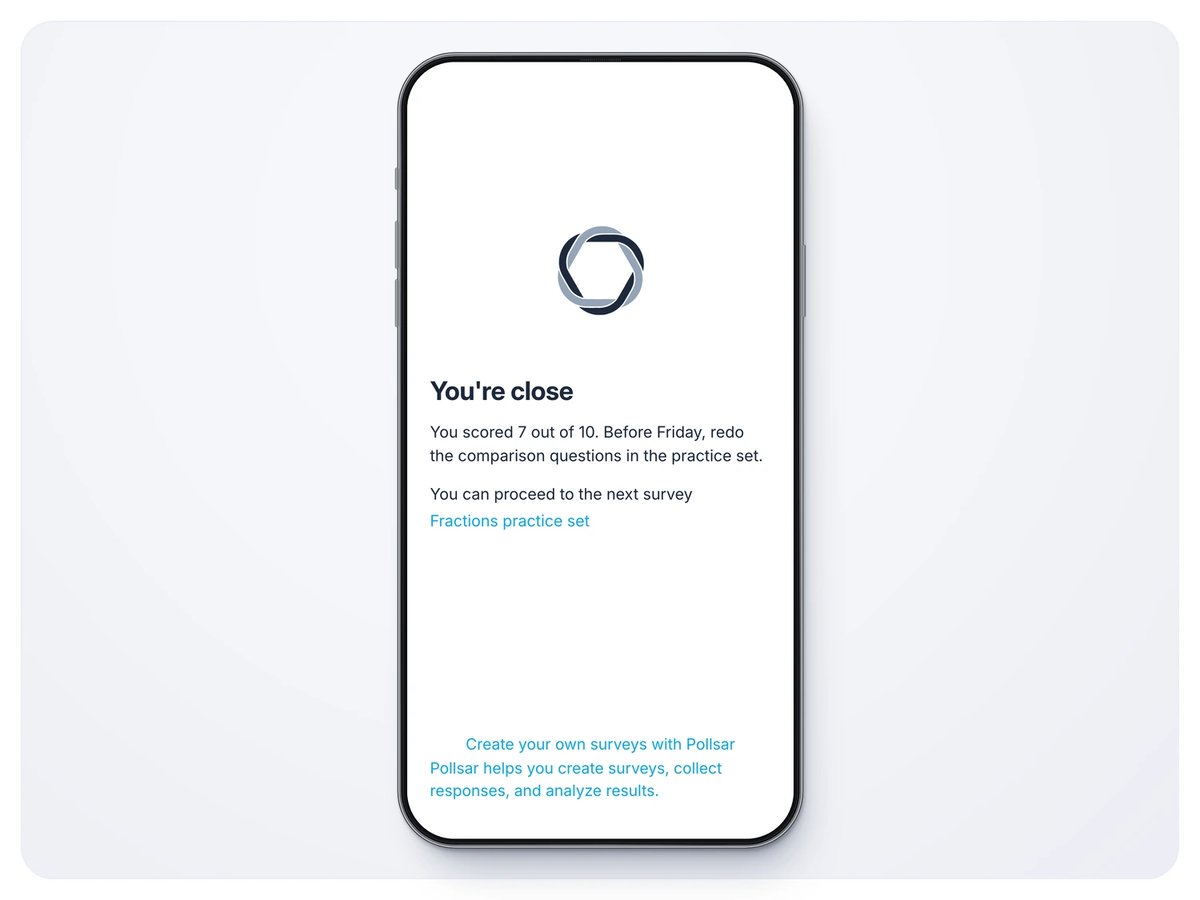
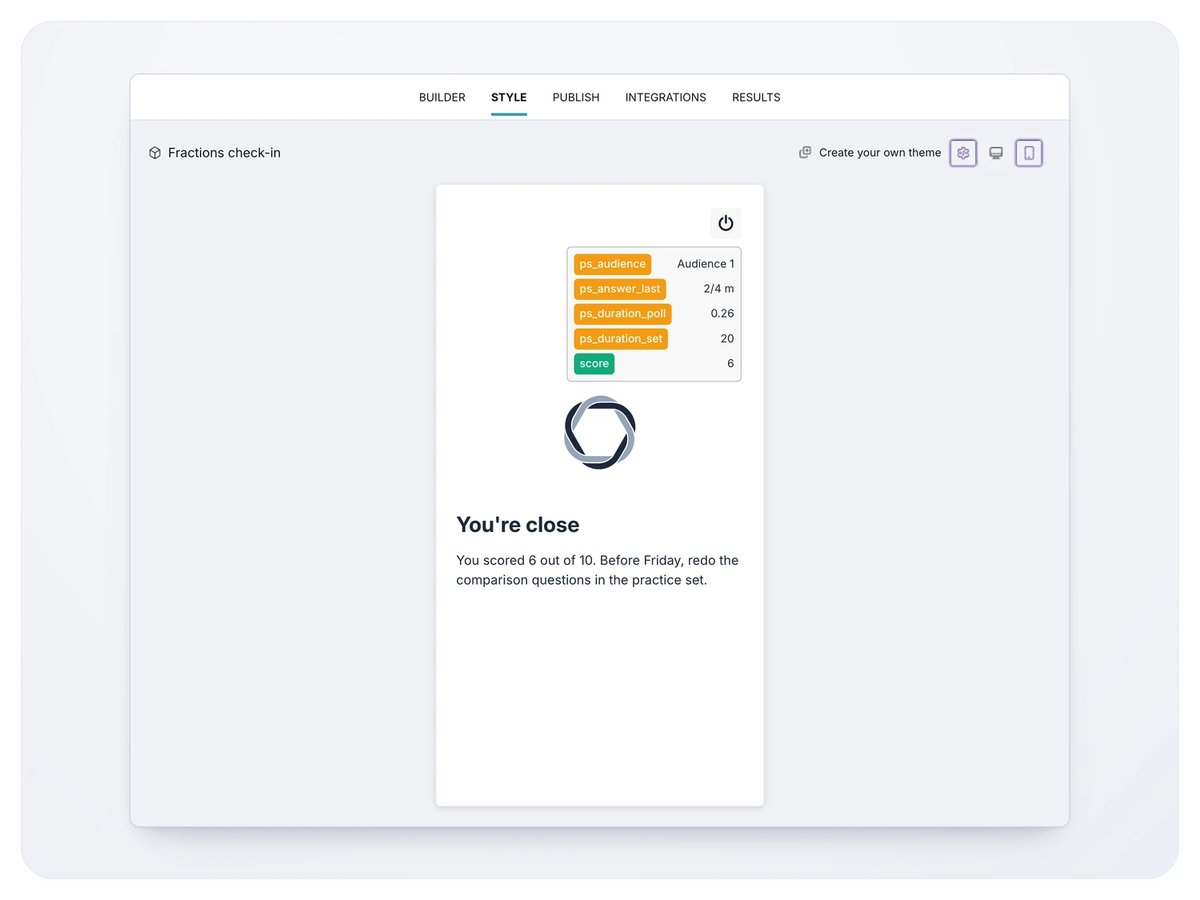
The result text can carry the total: “You scored {score} out of 10” reaches the phone as “You scored 7 out of 10”. Page F2 goes on: “You’re close. Before Friday, redo the comparison questions in the practice set.” A link on the page opens that practice quiz, so the student starts the next step without waiting for you to grade a stack of papers.
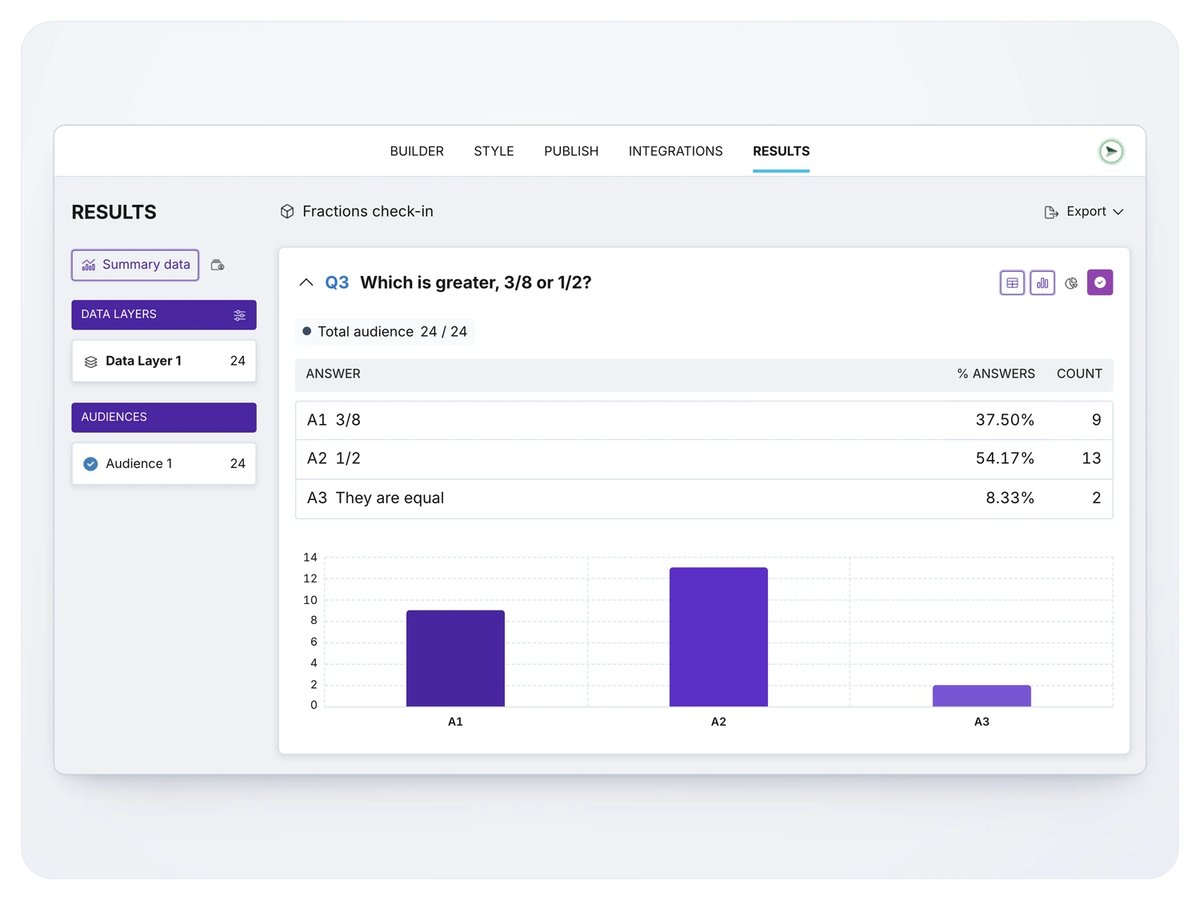
In Results, Summary data shows how the class answered each question. Say 24 students take the check-in. Nine of 24 chose 3/8 on question 3, or 37.50%. Ask students to show both fractions in eighths. Their explanations will tell you what to reteach. Or ask the AI assistant in Results which questions the class missed most. Individual Review lists every response with its final score, and our guide to formative assessment shows how to act on a check-in like this.
How to make a quiz online in four easy steps
Design a quiz whose score means something
Set the passing score before you write the questions
Decide first what a student with 9 points can do that a student with 6 can’t do yet. Then write questions that test exactly that, and the line between two result pages marks a real difference in skill rather than luck with one tricky item.
Leave no score without a result page
List every possible total and give each one a page. With 10 points and three pages, 0 to 5, 6 to 8 and 9 to 10 leave no gap and no overlap. Write the cutoffs as “less than 6” and “9 or more”, so a total you didn’t expect still lands on a page.
Give harder questions more points
A two-step word problem tells you more than a recall question, so let it weigh more. Say so on the welcome page, “Questions 7 and 8 are worth 2 points each”, so students know where the points are before they start and pace themselves.
Write wrong options from real mistakes
Each wrong option should be a mistake students actually make. Many think 3/8 beats 1/2 because 8 is bigger, so offer 3/8; when 9 students pick it, you have a comparison to ask them about. Our guide to multiple-choice questions covers wording.
Put one next step on every result page
A number tells a student where they stand, but not what to do about it. Give each page one action: redo two questions, try the practice set, or move on to the next unit. Link the follow-up quiz from the page, so practice starts while the topic is fresh.
Plan a page for when time runs out
When the timer ends, Pollsar keeps the answers given so far and sends the student to the main final page, not to a score page. Write that page too: “Time’s up. You scored {score} out of 10 on the questions you answered.” Then nobody leaves without a result.
Make your own quiz with the questions and settings you need
Ask multiple choice questions
Give one right answer its points, or let people check several options and score each one, with a point off for a wrong one. Multiple choice questions, or MCQs, suit a quick check of facts and steps.
Add true or false questions
The Yes/No question type comes with a True/False pair. Give points to the correct answer and use it for a fast check of rules, definitions and common myths before you teach the topic.
Score typed and number answers
Give points when a typed answer equals or contains your key, or when a number is equal to, above or below your value. Add one rule for every spelling of the answer you accept.
Put pictures in questions and answers
Add up to three pictures to a question, or make every answer option a picture and show them as tiles. Use it for a geography quiz with maps or a math quiz about shapes.
Shuffle the answer options
Shuffle the answer options, so the right one isn’t always in the same place. The questions stay in the order you set, so question 8 with the result rules always comes last.
Set a timer and a PIN for the quiz
The timer covers the whole quiz, not each question, and answers given before time runs out are kept. A PIN on the welcome page lets in only people with the code, and a response limit closes the quiz once that limit is reached.
Mix quiz and survey questions
End with an opinion question that has no points, such as “Which question felt hardest?” You get the score and the person’s own view of the whole quiz in the same response.
Score each skill separately
Keep more than one total. One variable counts the six one-point questions, another the two word problems, and the result page shows both: “Basics: {basics} of 6. Word problems: {word} of 4.” A student sees what to practice.
Branch to a follow-up question
Send people to different questions by their answer. A student who misses question 3 gets one more comparison question without points, and the rest go straight to question 4. The same rules can skip a whole group of questions.
Export every score to Excel or Google Sheets
Download all responses with their scores as an Excel or CSV file, or connect a Google Sheet: each finished quiz adds a row with the answers and the score. Webhooks and Zapier pass the results on to your other tools.
Style the quiz with a theme and logo
Pick a theme from the catalog, which has an Education category, and show your school or club logo on the welcome and result pages, so the quiz looks like yours on every screen.
Make a quiz for fun, too
The same tools run a general knowledge quiz for a club night, a riddles round or a funny quiz about your team, with a result page for each score that pokes a little fun at the winners.
Where will people take your quiz?
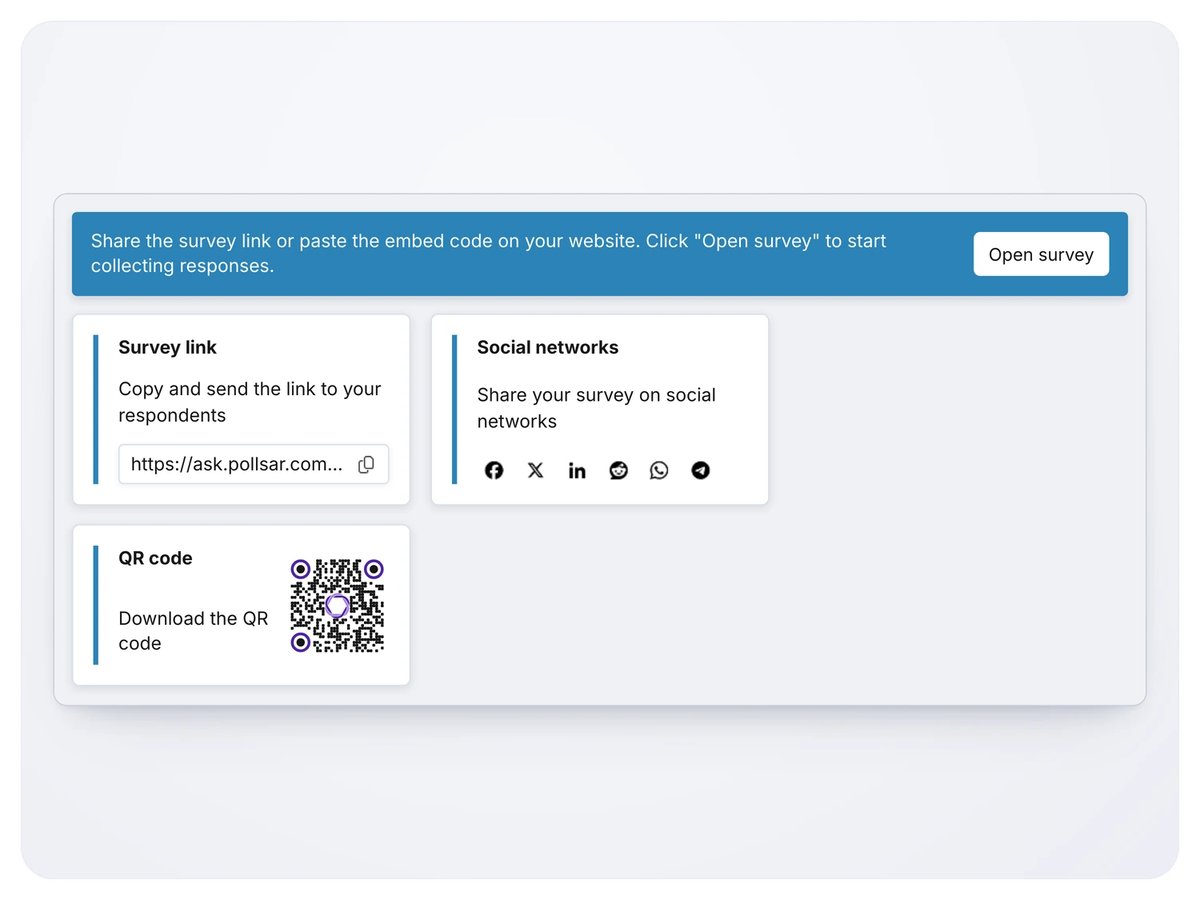
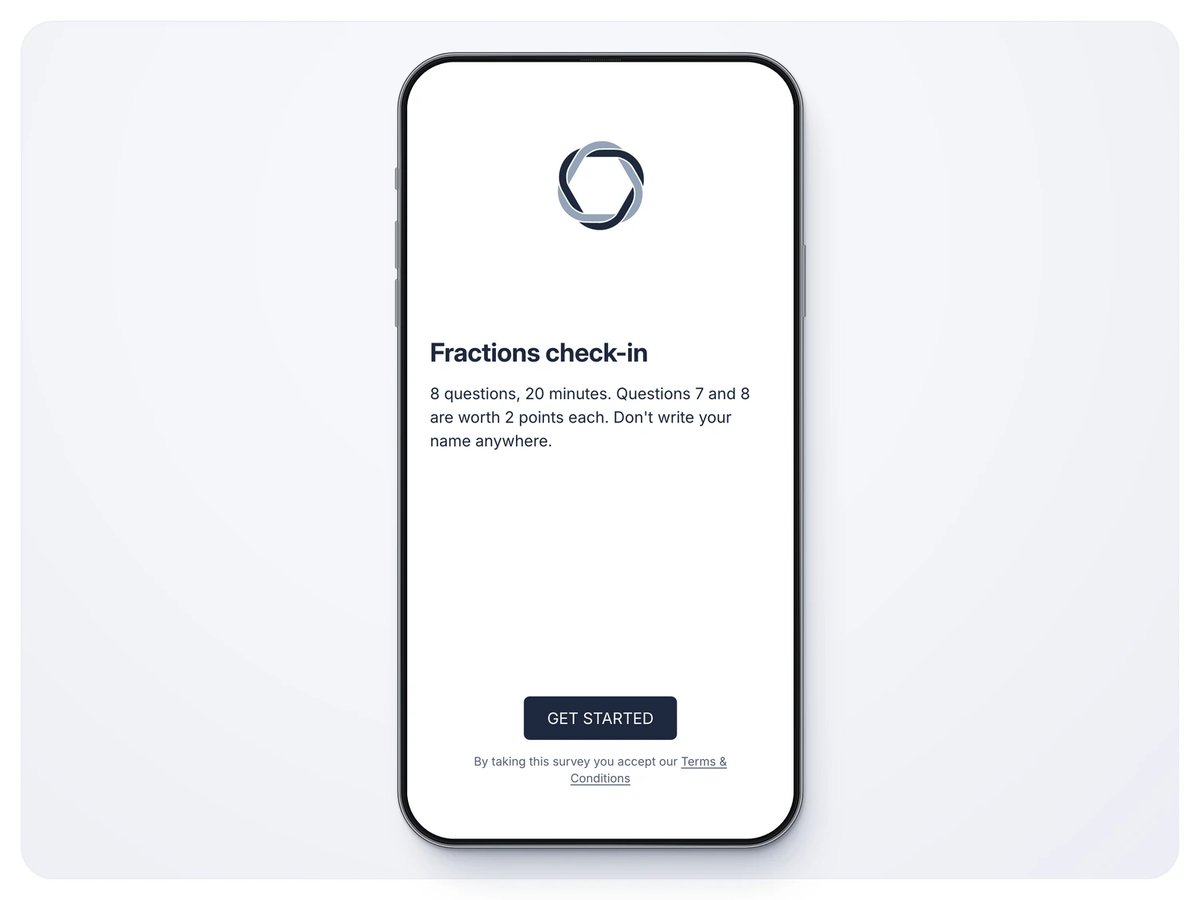
Paste the link into your learning platform, an email or the class chat. Students open it in the browser of any phone or laptop, with nothing to install. The welcome page states the rules before the timer starts: 8 questions, 20 minutes, 2 points for questions 7 and 8, no names. More classroom uses are on the page for teachers.
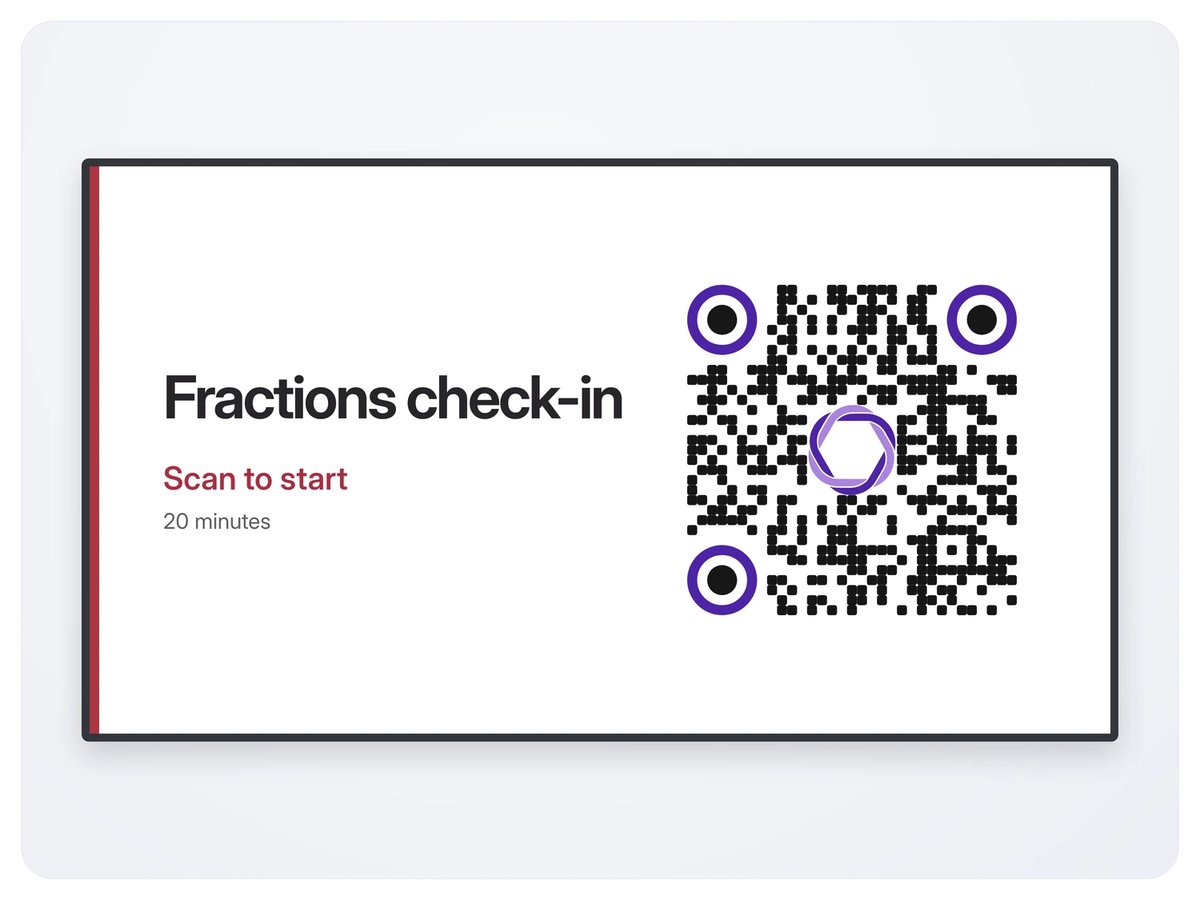
Download the QR code from Publish and put it on a slide or print it on the worksheet. The class scans it at the start of the lesson, and you read the results in Summary data before the bell. For a livelier warm-up with the same class, our list of classroom games has ideas.
Put the quiz on a course page or a club site as a frame, a pop-up button, a side tab or a full page: Publish gives you the code to paste. Visitors take an interactive quiz without leaving your site, and their scores land in the same Results. On a business site, ask for an email before the result page, and every lead arrives with a score. Each format is described on the page for websites.
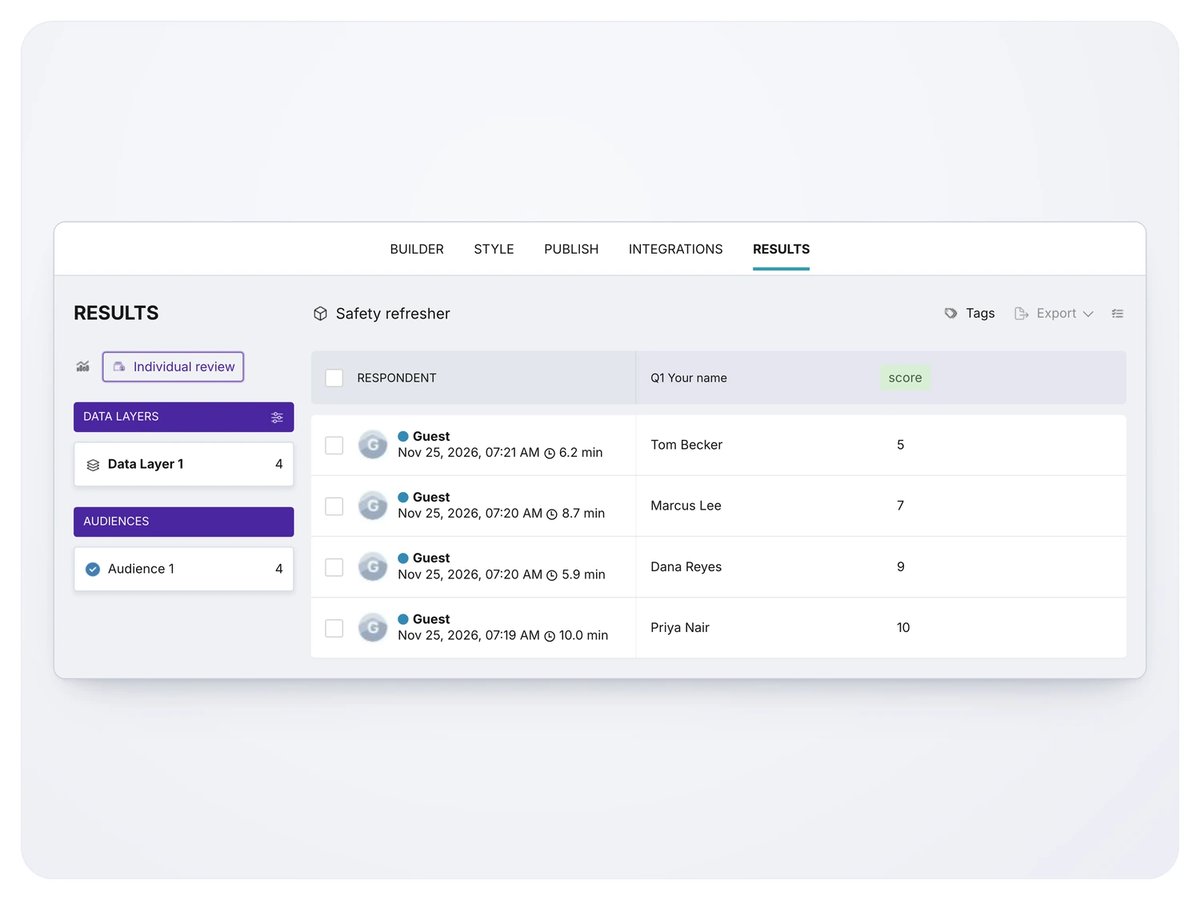
With adults, add a question for the name, and Individual Review shows each person’s answers next to their score and the time they took. A trainer can run a professional safety refresher this way, and a chess club can quiz members on the rules before a tournament. Each result page can send a person to the next module or the next round.
Questions to settle before you share your quiz
What should your quiz tell each person who takes it?
A fractions check-in, a safety refresher, a rules quiz for the club. Describe yours to the AI assistant or type the questions you already ask, and share the link today. Start free, no credit card.