Find your group’s top choice with a free poll maker

Ask one question, share it by link or QR code and see how the votes split, in counts and percentages. Write it yourself or let the AI assistant draft it. Signing up is free and needs no credit card; voters need no account, and only you and teammates with access to statistics see the tally until you share it.
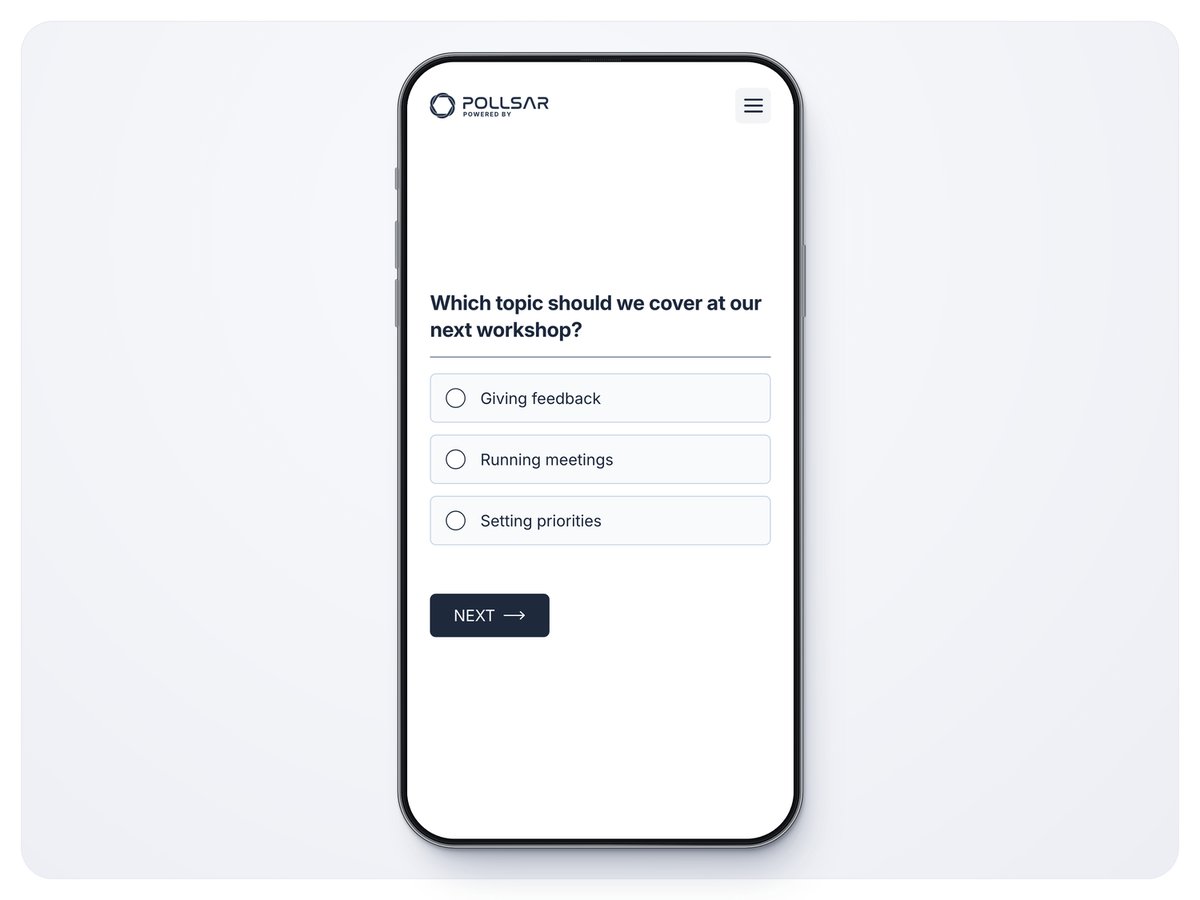
The question voters see after Get started: Which topic should we cover at our next workshop, with three answer options

Choose how to build your poll

Let voters choose one option

Single Selection lets each response pick one option. Shuffle the options to vary which one appears first, or add “Other” with a text field for an idea you missed.

Let voters select several options

Multiple Selection lets people tick every option that works for them: the meeting dates they can make, the dishes they’d eat, the snacks for the team offsite. Results then shows how many people ticked each one.

Ask a yes-or-no question

Ask one question with two preset answers: Yes/No, True/False, Agree/Dismiss or Like/Dislike. It suits a single proposal such as “Should we move stand-up to 10 am?”

Ask voters to rank their choices

People drag the options into their order of preference. Results shows how often each option landed in each place, with its average score and priority, and our guide to ranking questions helps you keep the list short.

Show pictures for voters to compare

Show the logo drafts or the venue photos right under the question, each with a caption, or attach an image to every choice, with a label or on its own. People compare what they see, not names.

Draft a poll question and answers with AI

Describe the poll in a sentence: who votes, what about, how many options. The AI assistant drafts the question and the choices; you check the wording and apply it.

How to create a poll, from question to tally
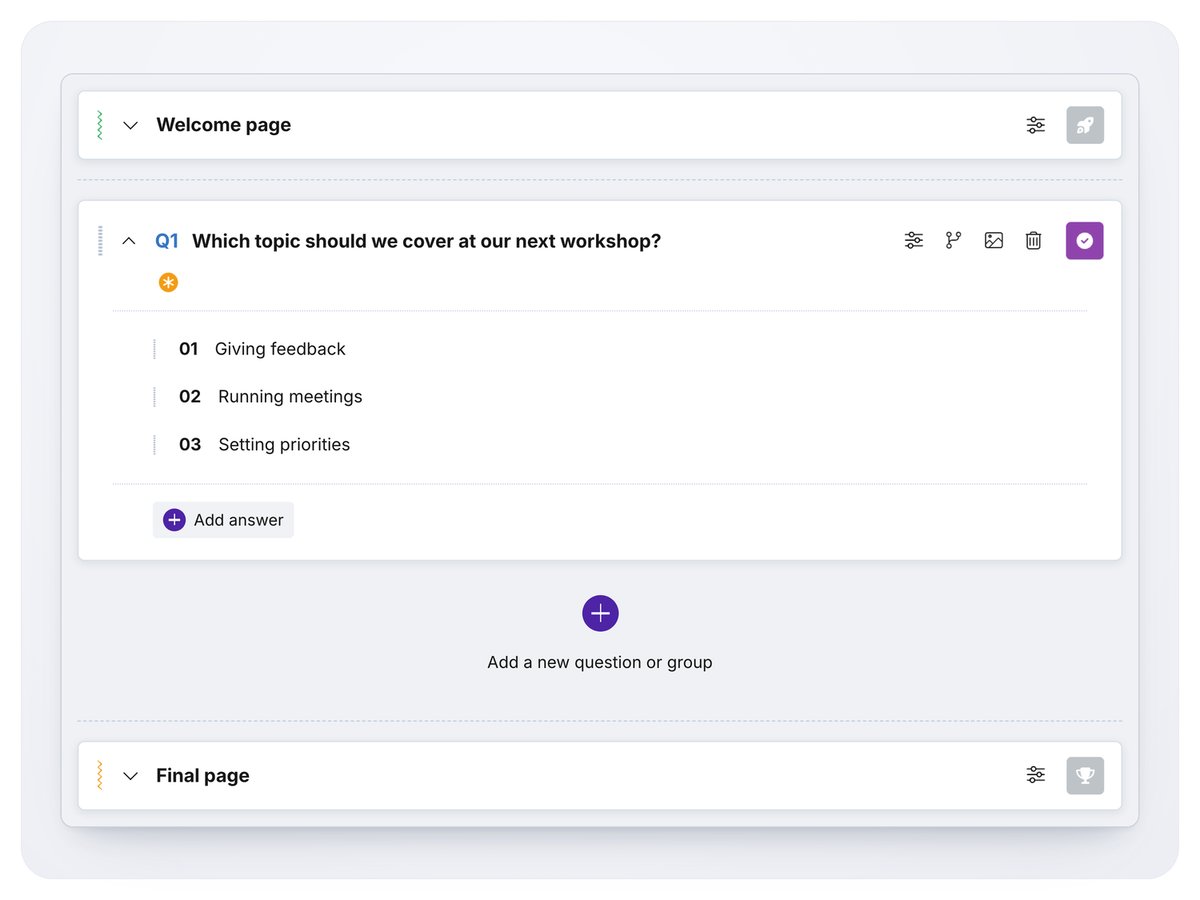
1 Write one question, or let AI draft it Click + New Survey, name the project and click Create, then add a Single Selection question: “Which topic should we cover at our next workshop?” with Giving feedback, Running meetings and Setting priorities. For an AI draft, pick Create with AI in the same window, describe the poll and check the draft before you apply it.
Pollsar builder with one single selection question about the next workshop topic and three answer options
2 Vote yourself first On the Style tab, switch to the phone view and answer the poll the way a teammate will. Reset the test run to try another answer: test votes stay out of Results. If you hesitate over a choice, rename it now, before anyone else has to guess what it means on a small screen.
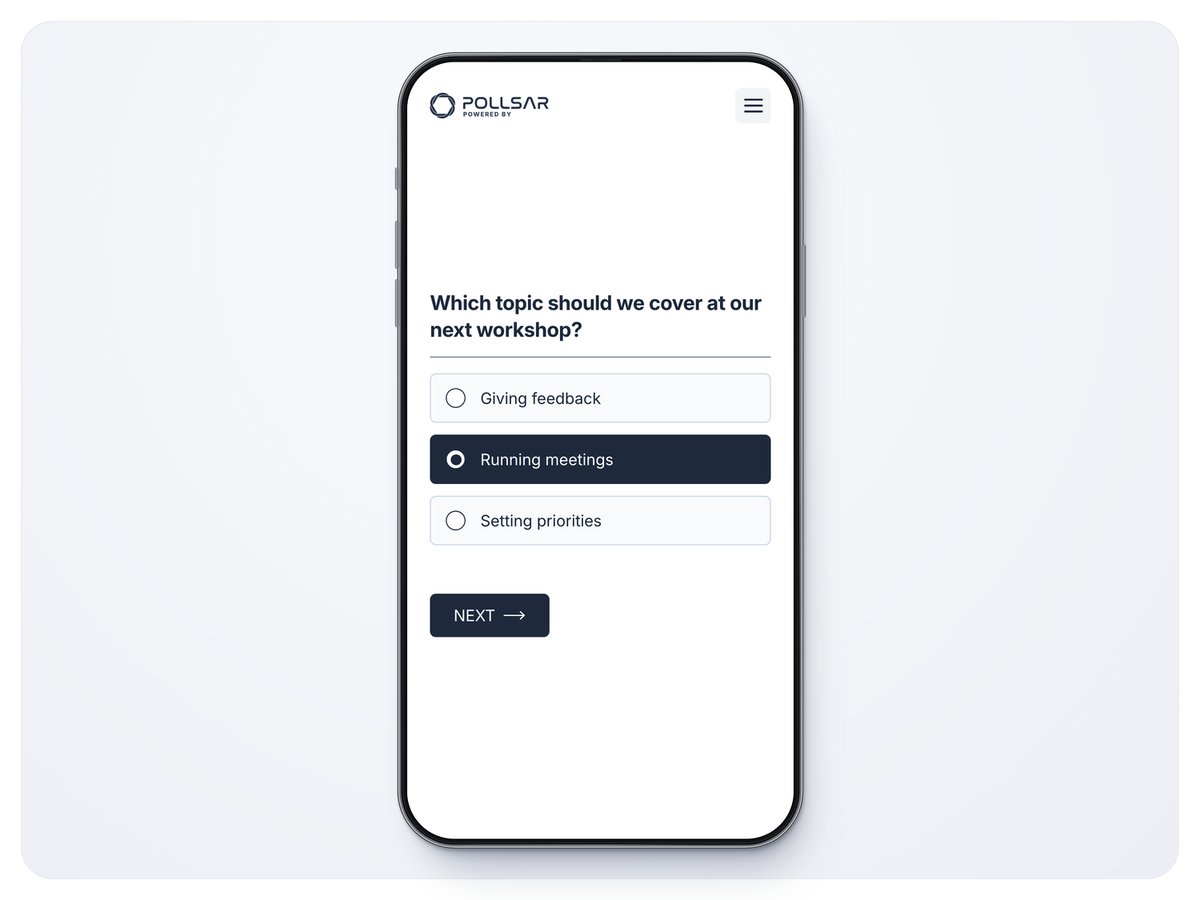
Test run of the workshop poll in the phone preview with Running meetings selected
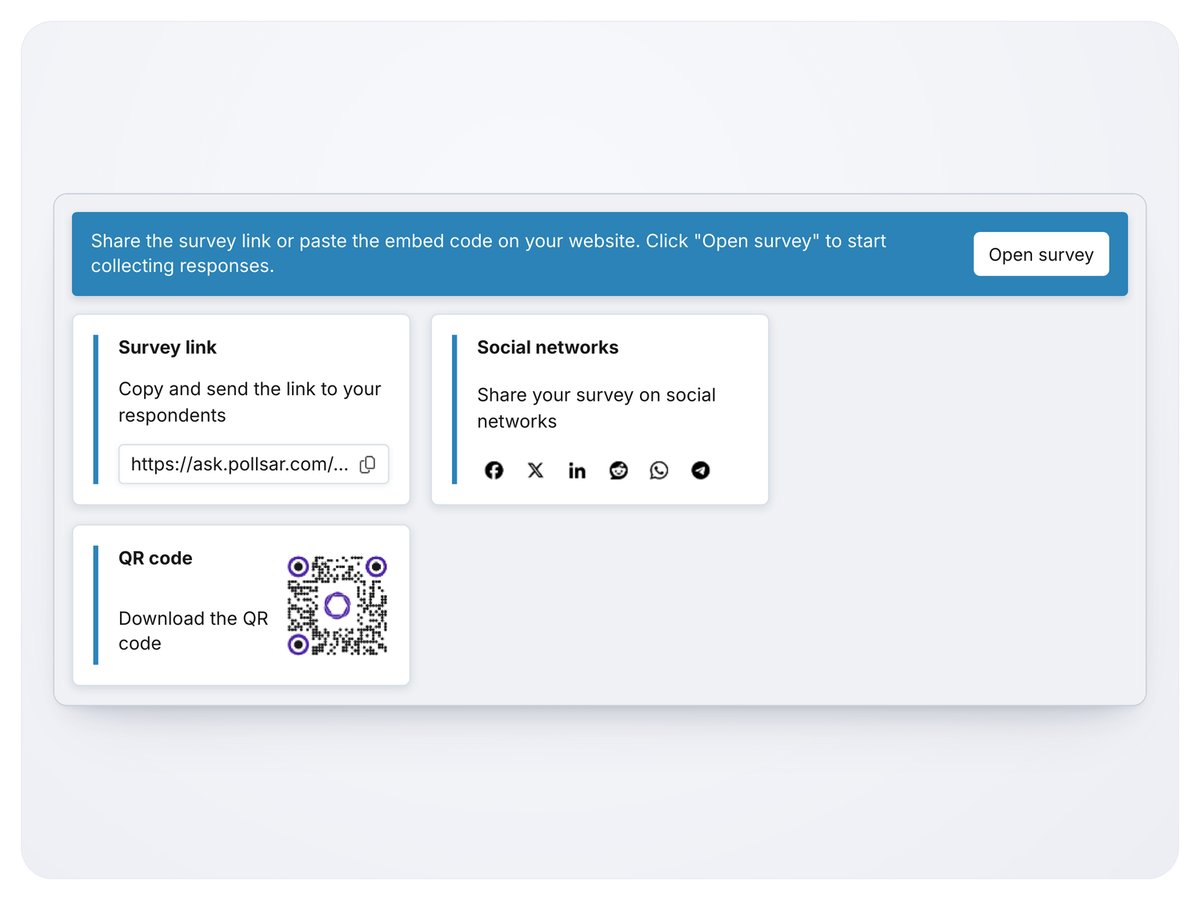
3 Open the poll and send the link by text, chat or QR code In Publish, click Open survey, then copy the link or download the QR code. Paste the link into a text message, the team chat or an email, or put the QR code on a slide at the Monday meeting. People tap the link and vote in the browser, no app needed; a reply typed into the thread doesn’t count as a vote. To show the poll on a web page instead, take the code from Publish; the formats are in the help center.
Pollsar Publish tab with the poll link, social sharing buttons and a QR code ready to download
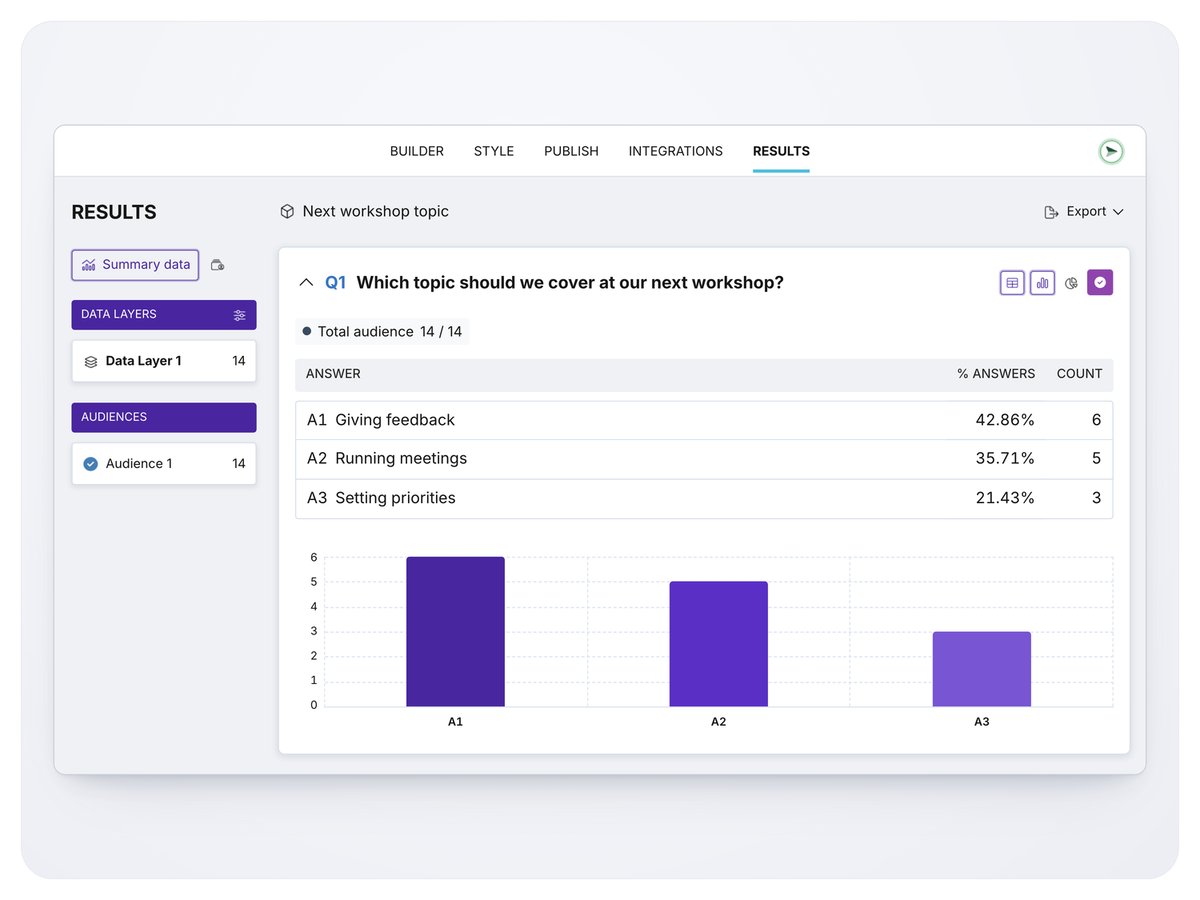
4 Check the tally In Results, Summary data shows how many votes each option got and its share, as a table, a bar chart or a donut chart. When the time you announced is up, click Close survey and confirm. The link stops accepting votes, and everything you collected stays in Results, ready to export. To stop at a set number of votes instead of a time, set a response limit before you open the poll.
Pollsar results for the workshop poll: a table with vote shares and counts and a bar chart of three options
Pollsar builder with one single selection question about the next workshop topic and three answer options

Where will people vote?

Run a live poll in a meeting

Give the room a minute to vote on their phones, then show the totals from Results on the shared screen and settle it before the meeting ends.

Ask a class in one tap

A class poll at the start of a lesson shows what students already know before you explain the topic. More ideas for lessons are on the page for teachers.

Settle it in the group chat

When a WhatsApp, Slack, Discord or Teams thread drowns in “+1” replies, one straw poll link gives everyone a single vote and you a clear tally.

Send an email poll

Ask newsletter readers to pick the next topic with a “Vote” button, and close the poll on the date the email names, so late votes don’t change the result.

Put a poll on your website

Let visitors vote on the next product, article or event without leaving the page. The poll widget, pop-up and HTML code are on the page for websites.

Hang a QR code in the office or at an event

A poster by the coffee machine or at the registration desk collects votes all day: an office poll about the kitchen or an event poll about the next topic.

What will you do with the votes?

Use one choice when you need a single topic: “Which topic should we cover at our next workshop?” For a series, ask “Which of these workshops would you attend?” with Multiple Selection and see how many respondents picked each topic. Interest isn’t attendance, so treat the second as a shortlist. Our guide to multiple-choice questions shows how to word options people can tell apart, and the same three options work for both versions.
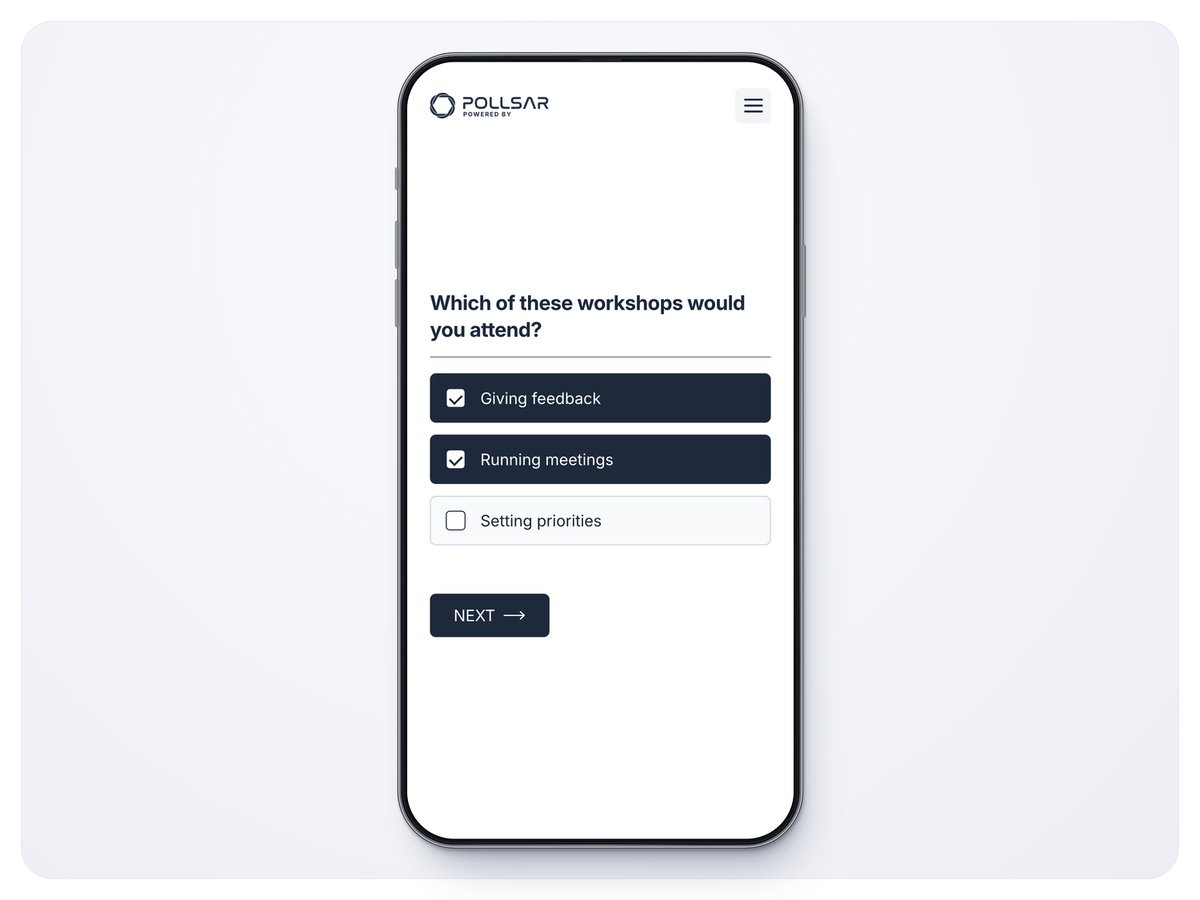
A phone showing the question Which of these workshops would you attend with three checkboxes, two of them ticked

Put the rule on the welcome page and in the message with the link, before the first vote: “Vote by Thursday at 5 pm. We’ll run the topic with the most votes if at least 10 of us answer. If two or more topics tie for first place, we’ll hold a runoff on just those topics.” At 5 pm on Thursday, close the poll yourself.
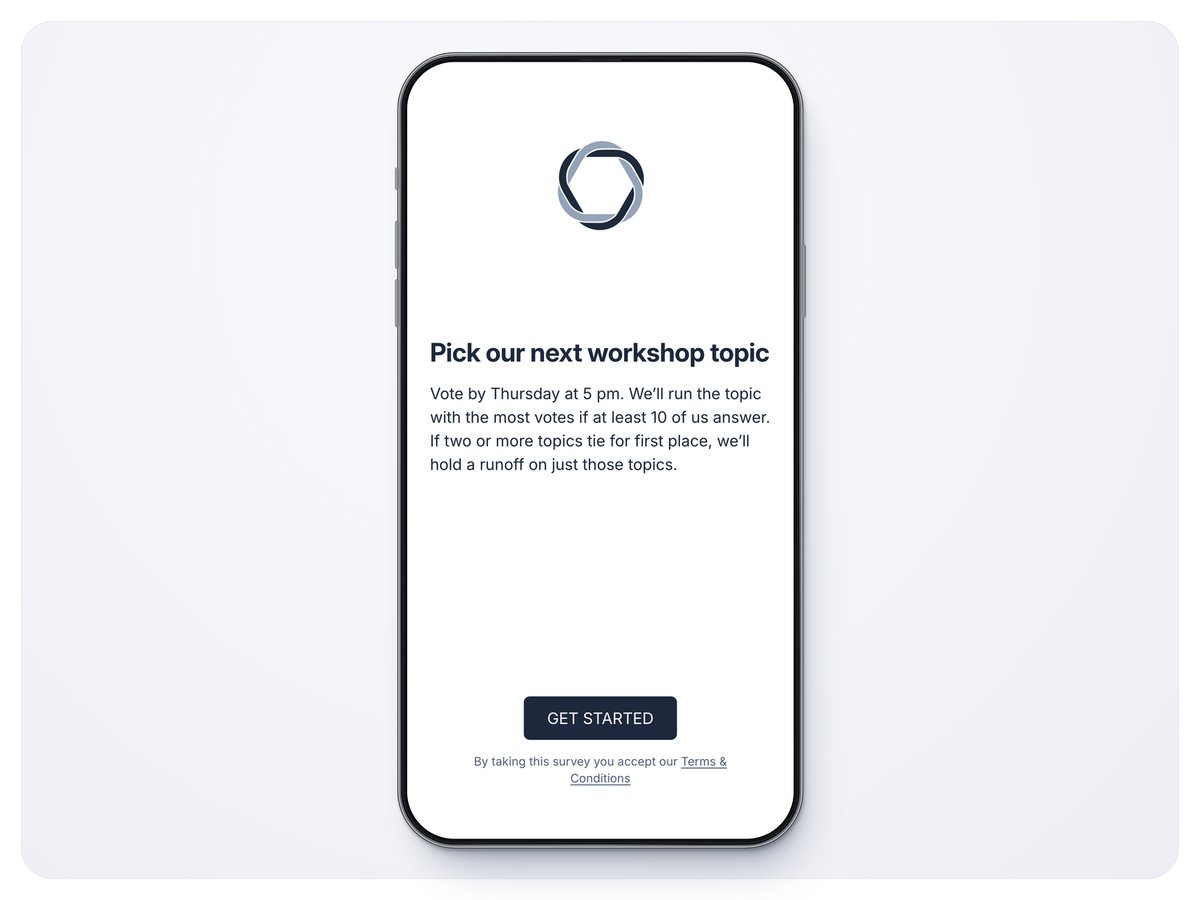
Poll welcome page on a phone with the voting deadline, the minimum number of votes and the tie rule

Say 14 of your 18 teammates vote: Giving feedback gets 6, Running meetings 5, Setting priorities 3. Six of 14 votes, or 42.86%, gives Giving feedback the lead under a most-votes rule; a majority would take eight. If you want a runoff when nobody reaches eight, announce it before voting. The shortlist version counts differently. Say the same 14 people tick 25 boxes: Giving feedback 9, Running meetings 10, Setting priorities 6. Results adds % PEOPLE next to % ANSWERS: the 10 ticks are 71.43% of the 14 respondents but 40% of the 25 ticks. Report the share of respondents when you say how many people are interested.
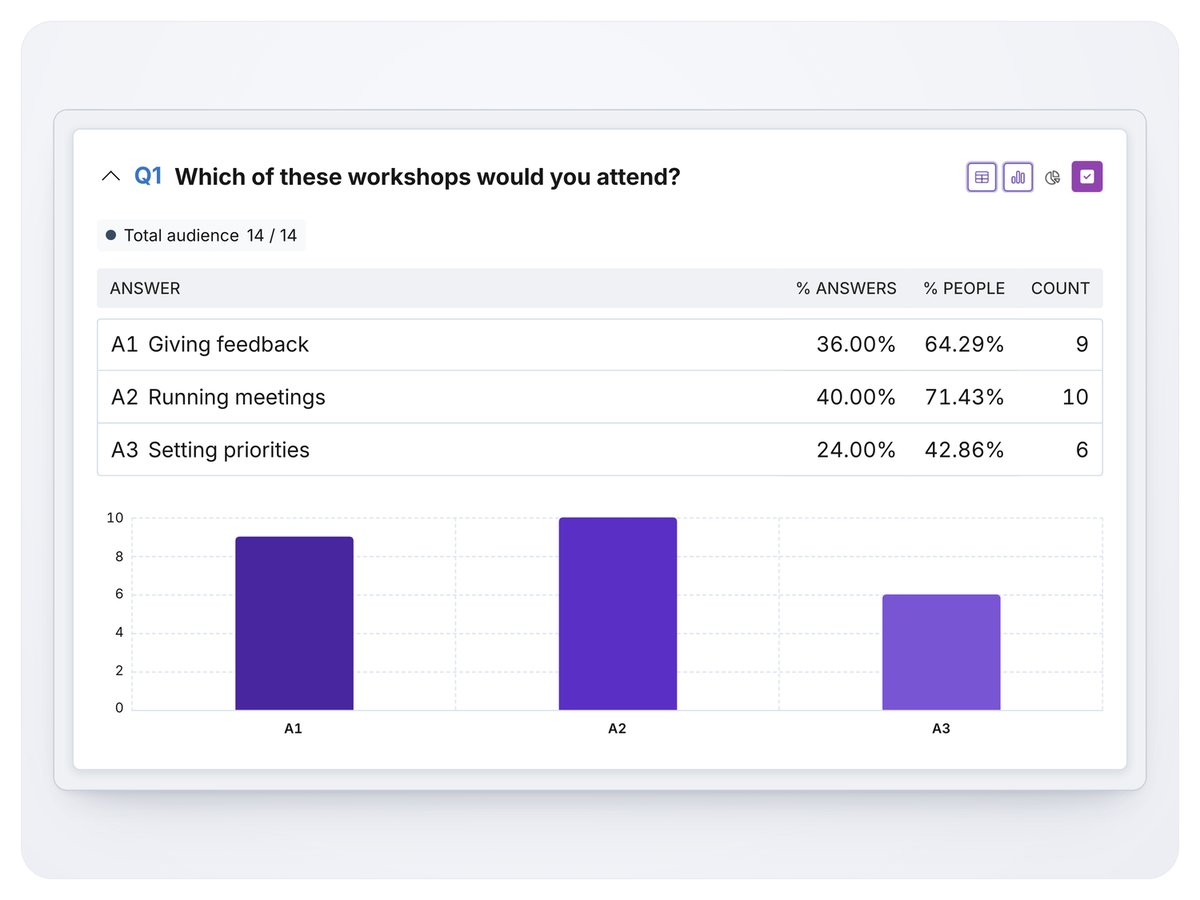
Pollsar results for the shortlist question with % ANSWERS, % PEOPLE and COUNT columns for three workshop topics

Say on the thank-you page where you’ll post the result, then send the message that fits. A winner: “We’ll cover Giving feedback. It got 6 of 14 votes.” A tie: “Giving feedback and Running meetings tied for first. Pick one of the two in this quick poll.” Too few votes: reopen the poll and keep the current data layer, so the 7 votes already in stay, then send “We have 7 responses and agreed on 10. I’ve reopened voting until Friday at 5 pm, and the 7 votes already in still count.”
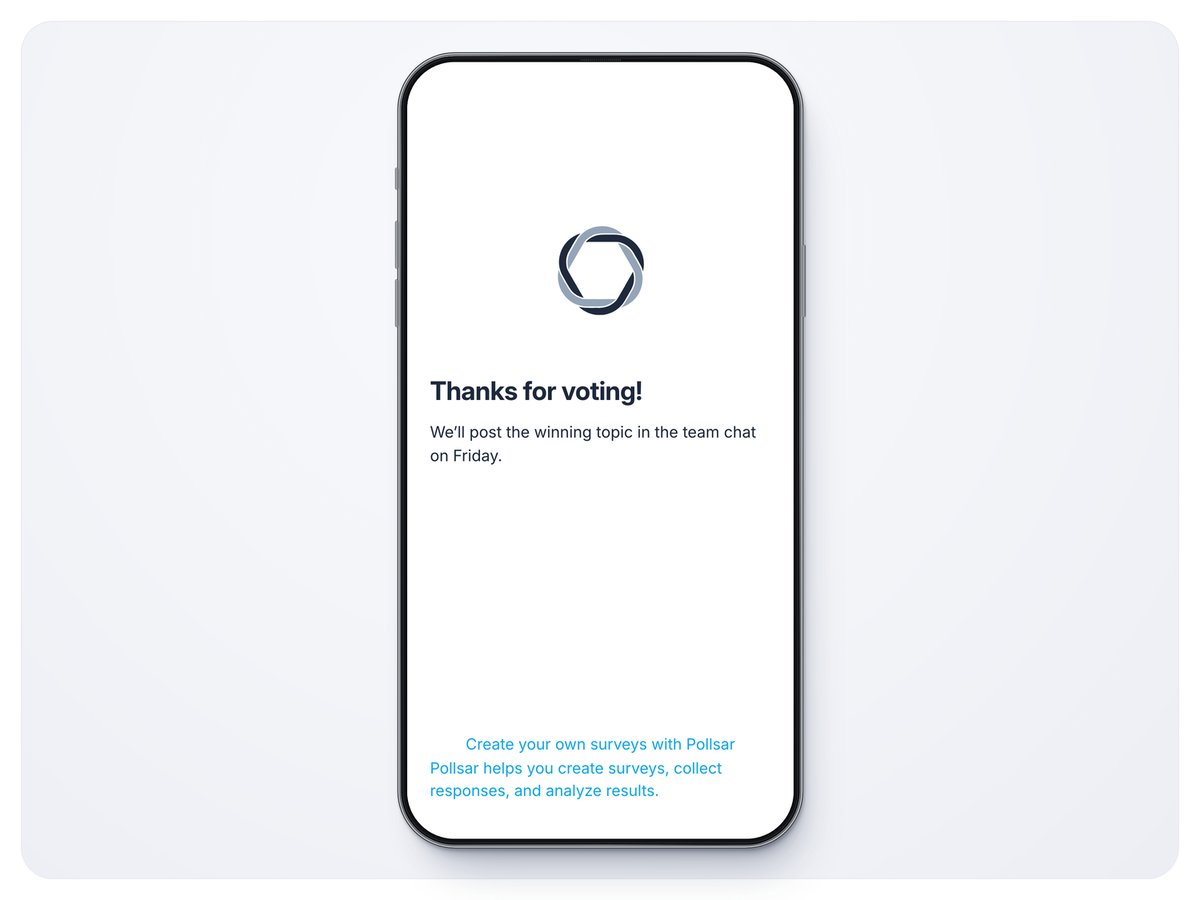
Poll thank-you page on a phone saying the winning topic will be posted in the team chat on Friday

The winning topic alone may not tell you how to plan the session. Before you open the poll, add a follow-up such as “What would you like this workshop to cover?”, so every voter gets it. With that follow-up you have a short survey, and the same builder handles the logic, the open answers and each person’s full response.
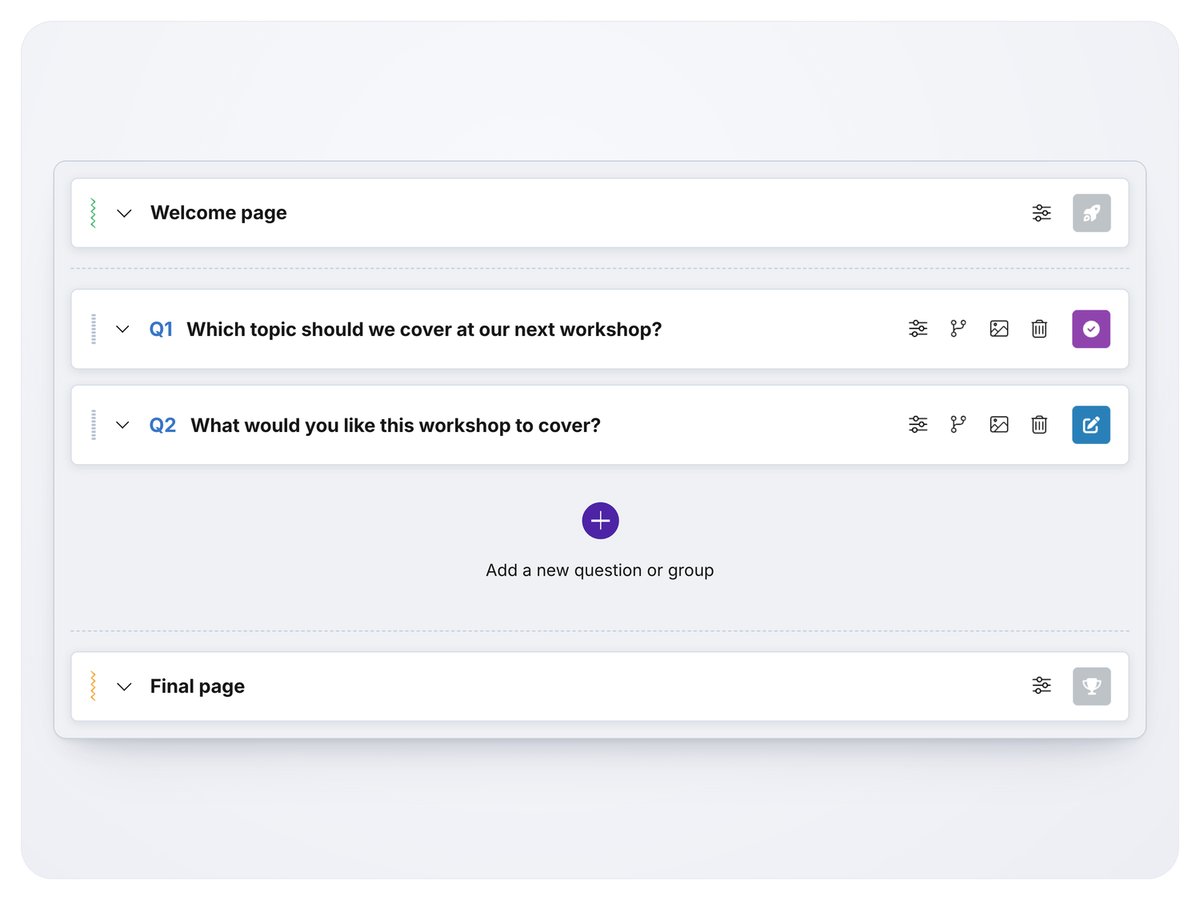
Pollsar builder with the workshop vote followed by an open question about what the session should cover

Questions to settle before you share your poll

You choose when you open the poll: accept a single submission, let a new submission replace the earlier one, or count every submission separately. A single submission suits a one-off vote; the replace option suits a group that may change its mind before the deadline. Voters aren’t asked to prove who they are, so when every eligible person must be counted exactly once, follow your group’s formal voting procedure.
Yes, for the people you ask: they vote as guests, with no account and no name. Pollsar records technical details such as the device type, and an IP address reaches you only if you set up an integration to send respondent details. If you ask for a name or email, that answer appears in your results. Tell people what you collect before they vote.
Yes. Creating a poll, sharing it by link or QR code and reading the vote counts and percentages are free, with no credit card, for up to 100 votes a month. You sign up once so the poll has an owner who can close it and read the tally; the people you ask don’t sign up at all. Pollsar hosts the voting page, so you don’t need a website of your own or a polls app: it opens in the browser on Android and iPhone. Every new user also gets a month of Pro as a gift, so you can try the whole tool from day one.
A built-in poll or a poll bot stays in one chat: people outside it can’t vote, and the count lives in the thread. A poll link is one vote for every place at once: paste it into two chats, a Facebook group, an email and a slide with a QR code, and all the votes land in one tally that you close at the deadline, with counts and percentages ready in Results.
No. In a ranking poll everyone puts the options in order, and Results shows how often each option landed in each place and its average score. Ranked-choice voting goes further: the option with the fewest first places is dropped and its votes pass to the next choice, round after round, until one option has a majority. Pollsar doesn’t run those rounds. For a team lunch or a workshop topic the average rank is enough; for an election whose rules require ranked choice, use a tool built for it.
Yes. Add a Multiple Selection question, list the dates or time slots as options and ask everyone to tick every one they can make. Results shows how many people ticked each slot and their share of everyone who answered, so you schedule the meeting for the one that suits most of the group. Write the time zone into each option: the poll works even when people don’t share a calendar, and nobody needs an account to vote.
Not a separate one: people make a one-question Google Form. Pollsar is built for the vote itself: voters can rank the options, you get a QR code ready for a slide when you run a live poll in class or at a meeting, and a welcome page states the deadline and the tie rule before anyone votes.
A poll is one question with a count of votes: it ends in a choice, like a date, a name or a topic. A survey is several questions that explain an experience: what happened, why, and what to change. If one number will settle it, run a poll; if you’ll want to ask “why?” after the answer, you need a survey. Both are built in the same Pollsar builder, so you don’t need a second tool when one question stops being enough.

What does your group need to decide?

A lunch spot, a movie for Friday night, a project name, the next workshop topic. Make a poll from the question you’d post in the chat: add the options and send one link to a quick online poll instead of counting replies in a long thread.