Knowledge Base

Payments and invoices
The Finance section stores your complete payment history and provides access to invoices. Open it via the profile menu (avatar in the sidebar → Finance).
Payment history
At the bottom of the Finance section there is a table with all payments. Each entry contains:
- Payment date.
- Operation description (for example, plan payment or billing period switch).
- Amount.
- Status — a successful payment is marked with a green checkmark.
If there are many payments, use the page navigation to browse earlier entries.
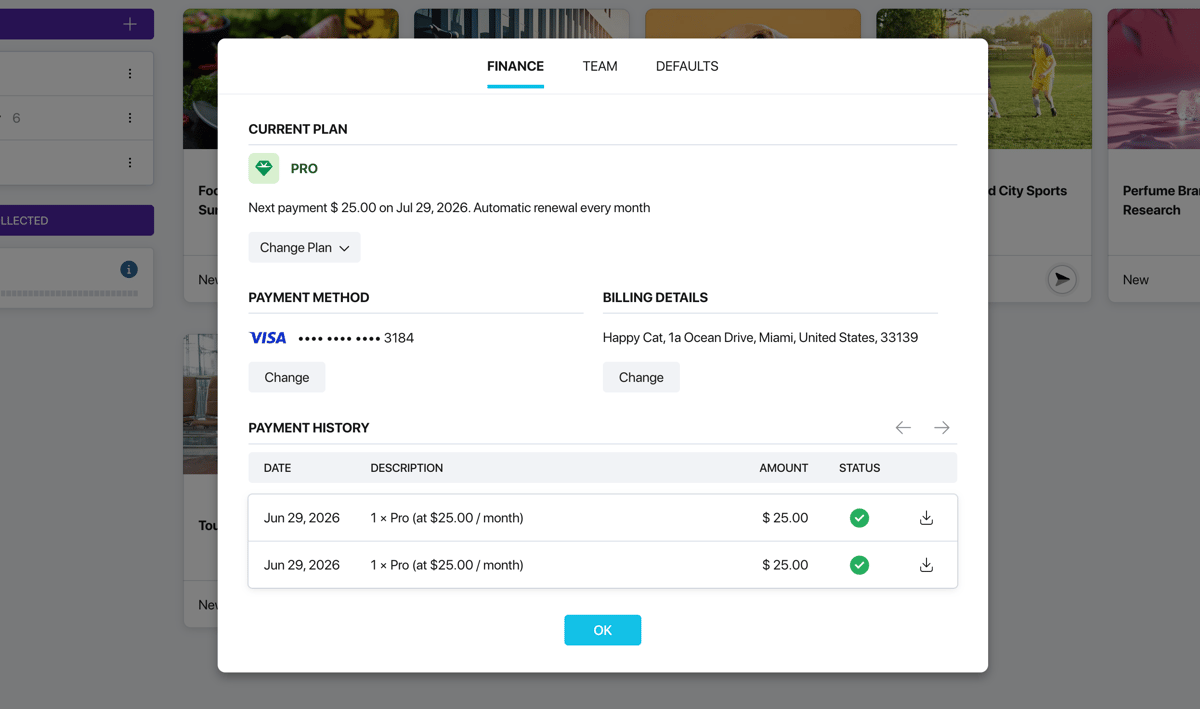
Payment history
Downloading invoices
Each payment in the table has a download button (download icon). Click it to download the invoice for that specific transaction.
What to do if a payment fails
If an automatic charge does not go through, check the following:
- Whether there are sufficient funds on the card.
- Whether the card has expired.
- Whether the card is enabled for online payments.
You can link a different card or update the current one in Finance → Payment Method. If the problem persists, contact support at [email protected].