Knowledge Base

Interface settings
On the Preferences tab in your profile settings you can configure the system behavior after login, the interface language, and date and time display formats.
To open this tab, click your avatar or nickname in the sidebar → Profile Settings → Preferences tab.
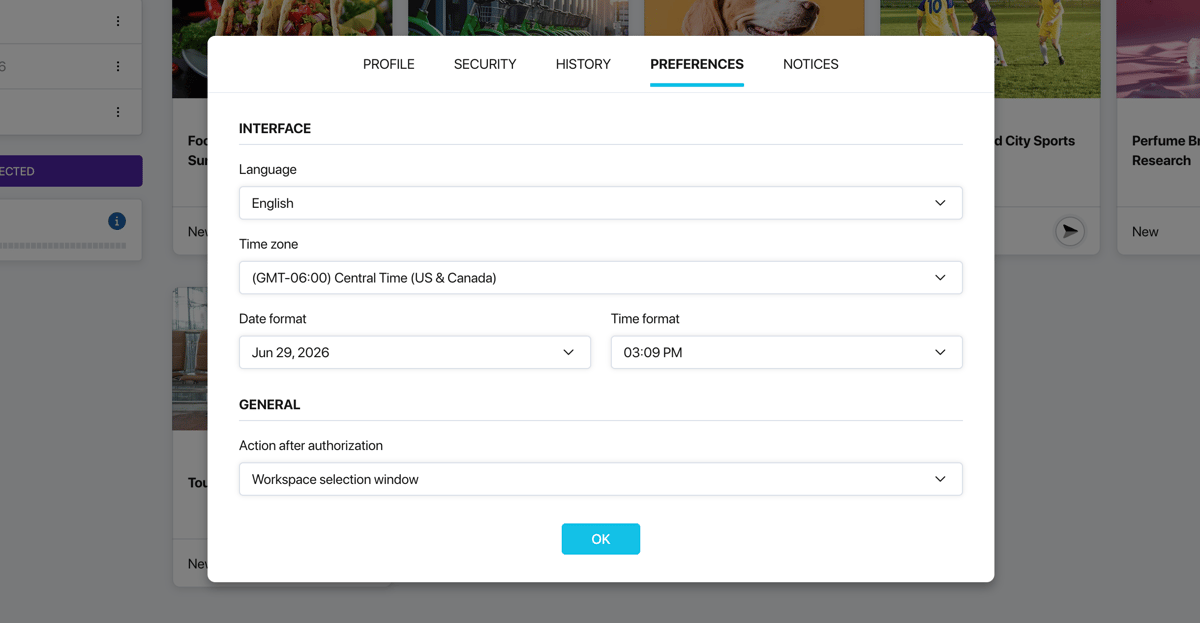
Preferences tab
Action after login
In the General block you can choose what happens right after logging in:
- Workspace selection window (default) — a welcome screen opens where you choose which workspace to enter.
- Go to the Maker Workspace — you go straight to your main workspace.
- Go to the Respondent Workspace — you go straight to the respondent panel.
- Do nothing — you stay on the main website page.
This setting is convenient if you mostly work in one workspace and want to skip the selection screen.
Interface language
Select a language from the drop-down list in the Interface block. This setting affects the entire dashboard interface — menus, buttons, labels, system messages. The language of your survey content is not affected.
Time zone, date and time format
In the same Interface block there are three additional settings:
- Time zone — affects how dates and times are displayed in statistics, the activity log, and notifications.
- Date format — the order of day, month, and year (for example, DD.MM.YYYY or MM/DD/YYYY).
- Time format — 12-hour or 24-hour format.