Distribution tools
After opening a survey, you need to deliver it to respondents. The Publish tab offers distribution tools — cards in the main area of the page. Each tool is tied to the selected audience in the left panel.
Survey link
A direct link to the survey with a Copy link button. Copy the link and send it to your respondents in any convenient way — via messenger, email, or in a document.
A UTM tag can be added to the link in the format ?utm_tag=value. The UTM tag is recorded in the respondent's questionnaire and displayed in statistics, allowing you to track the effectiveness of specific channels and campaigns.
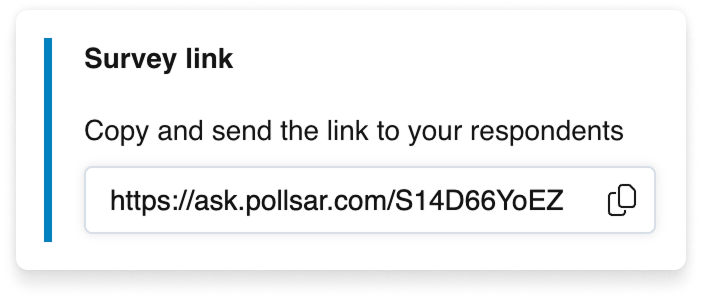
The Survey link card
Social networks
Quick sharing of the survey link on social networks. Several popular platforms are available.
Clicking a platform icon opens a publication window with the survey link pre-filled. Social networks automatically pull the survey preview (title, description, cover) from metadata.
This tool is designed for distributing the survey link. It differs from the social networks block on the final page, where links to your profiles are displayed.
QR code
A branded QR code with the Pollsar logo. Clicking opens a window with a large QR code and a download button. Use the QR code to distribute the survey at events, in printed materials, or on screens.
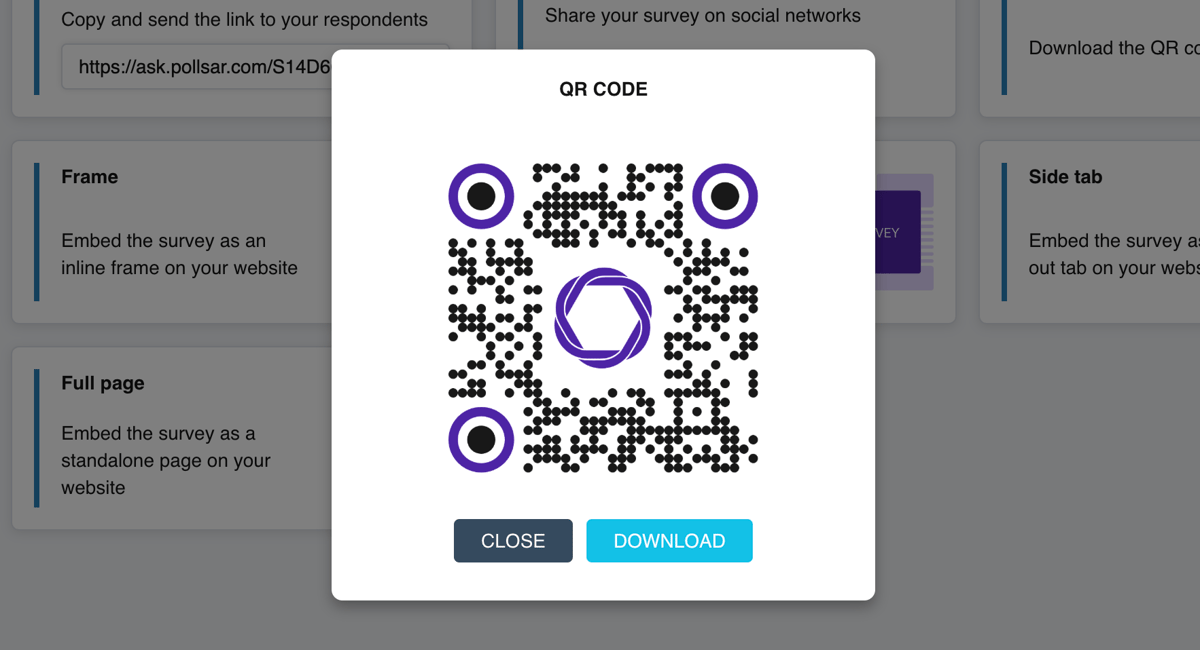
The QR code window
Website embedding
If you want to place a survey directly on your website — without redirecting the respondent to an external page — use embedding. This is especially convenient for marketers, webmasters, and website owners: the survey becomes part of your site and feels like a natural page element. Four embedding formats are available.
Frame
The survey is embedded as an iframe block on a website page. Suitable for placing a survey within an existing page — for example, in a feedback section or on a landing page. Width and height of the block are configured in settings (in pixels or percentages). The ready code is copied and pasted into your website's HTML.
Modal window
A button is placed on your site; clicking it opens a modal window with the survey. Handy when the survey shouldn't take up space on the page permanently — the respondent decides when to take it. In the settings you can set the Button text (default «Take a survey»), Button color, and Button icon, with a live preview. Copy and paste the code into your website's HTML.
Side tab
A slide-out side tab pinned to the edge of the screen. Clicking it opens the survey. Good for a permanent, unobtrusive presence — the visitor sees the tab on every page. In the settings you can set the Side tab text, Side tab color, and Side tab icon. Copy and paste the code into your website's HTML.
Full page
The survey occupies the entire page. Suitable for a dedicated survey page on your website. No settings are required — just copy the code and place it on a separate page.
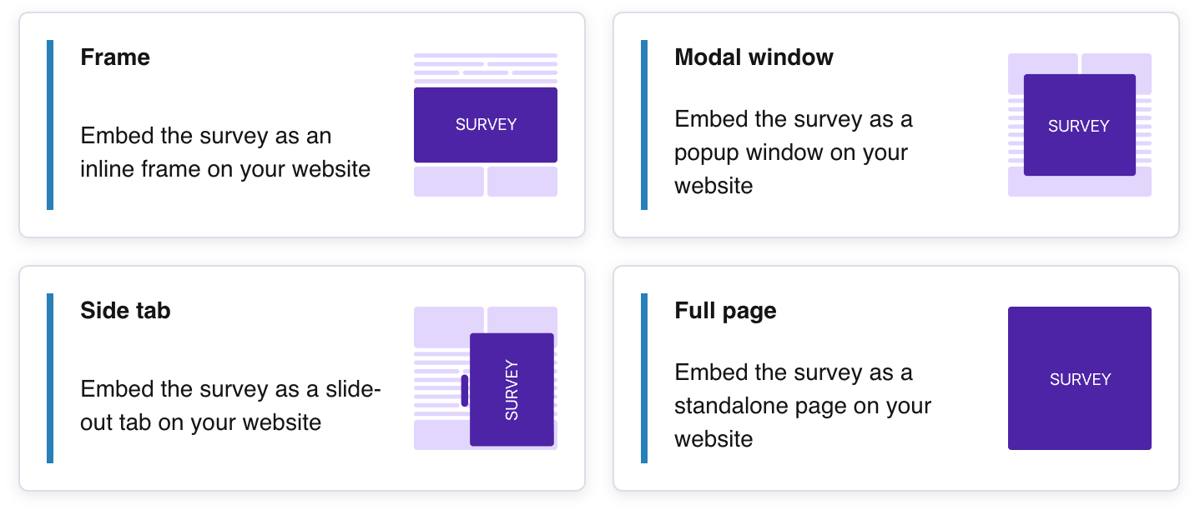
The embedding tools