Account Security
The Security tab in your profile settings brings together all the tools for protecting your account: changing your login and password, two-factor authentication, and login notifications.
To open this tab, click your avatar or nickname in the side menu → Profile Settings → Security tab.
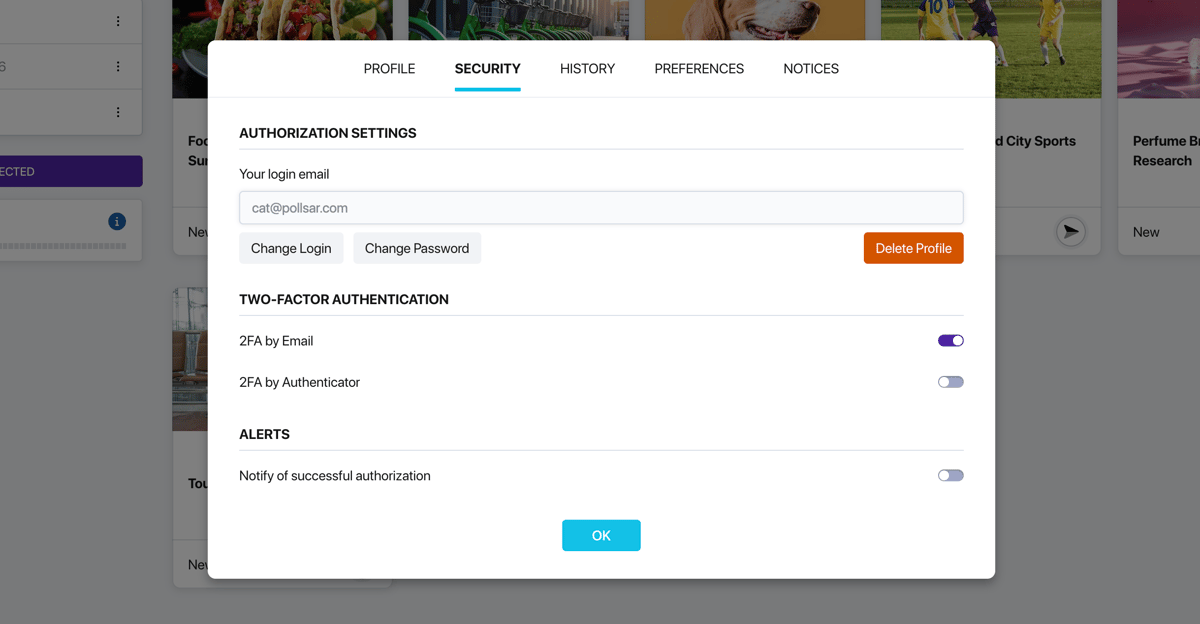
Changing your login email
The Authorization Settings block shows your current email (login). To change it, click Change Login and follow the instructions.
Changing your password
Click Change Password in the same block. You will need to enter your current password and set a new one.
Two-factor authentication
Two-factor authentication (2FA) adds an extra layer of protection — in addition to your password, a confirmation through a second channel is required to log in. Even if someone learns your password, they cannot access your account without the second factor.
Pollsar supports two methods, which can be used separately or both at the same time:
2FA by email — a one-time confirmation code is sent to your email on every login. Enable the 2FA by Email toggle — from that point on, every login will require code confirmation.
2FA via authenticator app — a more reliable method. Use a compatible TOTP app (such as Google Authenticator or Authy) to generate temporary codes. Codes refresh every 30 seconds and do not depend on email availability. Enable the 2FA by Authenticator toggle and follow the instructions to link the app to your account.
Login notifications
The Alerts block has a Notify of successful authorization toggle. When enabled, you will receive an email notification every time someone successfully logs into your account. This helps you quickly spot suspicious activity, even if 2FA is not enabled.
Deleting your account
The Delete Profile button is located in the authorization settings block. It is placed separately and highlighted in red to prevent accidental clicks. Account deletion is irreversible.