Creating a new project
Pollsar offers three ways to create a project: from scratch, with AI, or from a ready-made template. The first two are available via the + New project button on the Projects page, and templates are on a separate tab — Template Gallery.
Creating from scratch
Click + New project — the project creation window opens. On the New project tab:
- Project title — a required field. It is shown on the project card in your list. It may also be visible to respondents and indexed by search engines — keep this in mind when choosing a title.
- Note — an optional text field, visible only to you and your team members. Handy for context: the survey's purpose, the client, a deadline.
- Cover — the project image shown on the card in your list. By default, the Cover toggle is off and Pollsar's default image is used. Turn it on to choose your own cover: the images are grouped into thematic categories — pick a category and the image you want.
Click Create — an empty project appears in your list. Click it to open the builder and start adding questions.
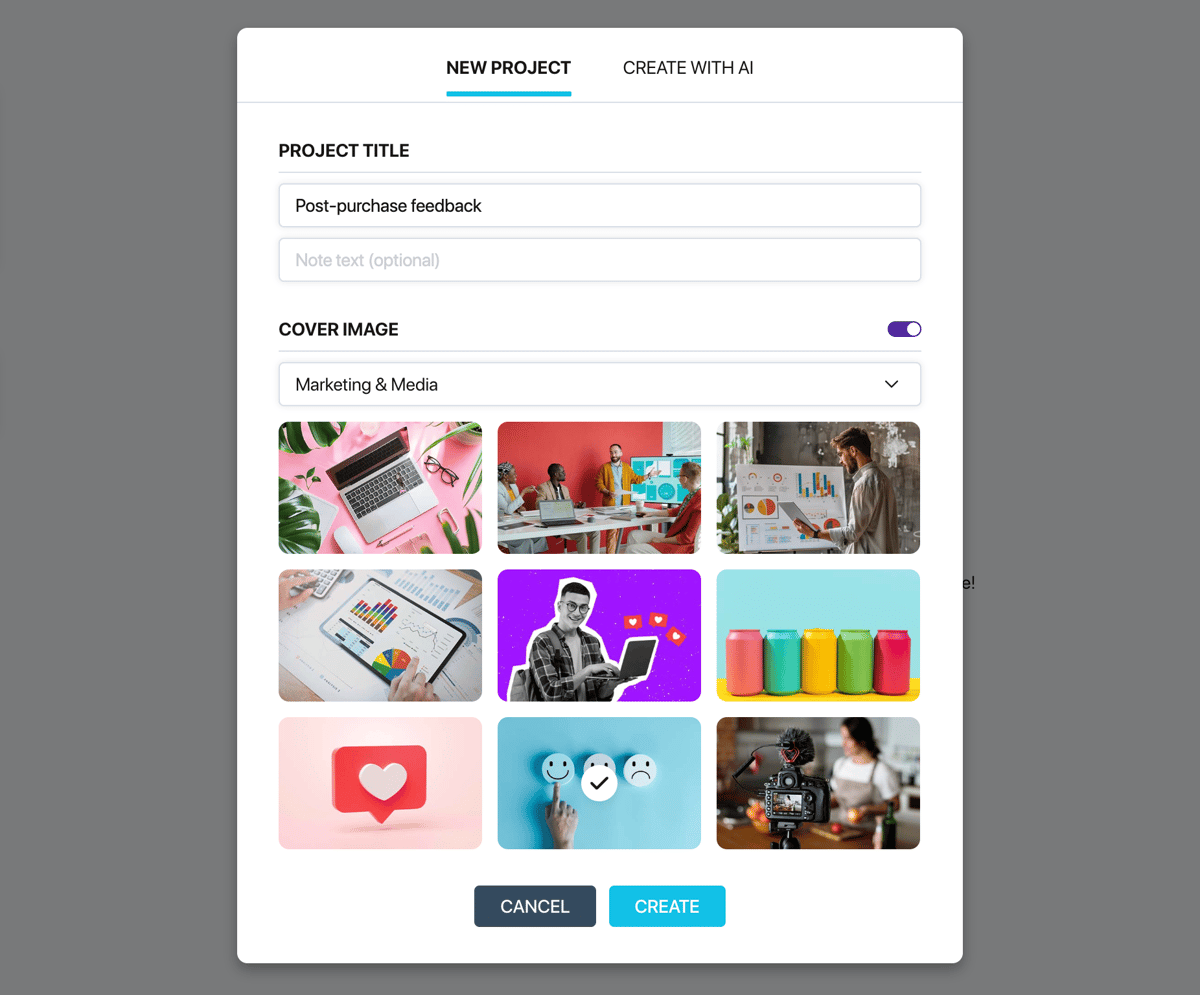
Project creation window
Creating with AI
In the same creation window, switch to the Create with AI tab. Here you'll find a single text field where you describe in free form what you want: a survey, a quiz, a test. State the topic, the goal, the desired tone, the question types, and the language the project should be created in. If no language is specified explicitly, the survey is created in the language of your prompt.
Below the input field there is an indicator of your remaining AI generations for the current month — the number depends on your plan. For details on the limits, see the Plans page.
Click Create — the AI generates a ready project with questions and answer options. It appears in your list as a new card. Click it to open the builder and edit the result if needed.
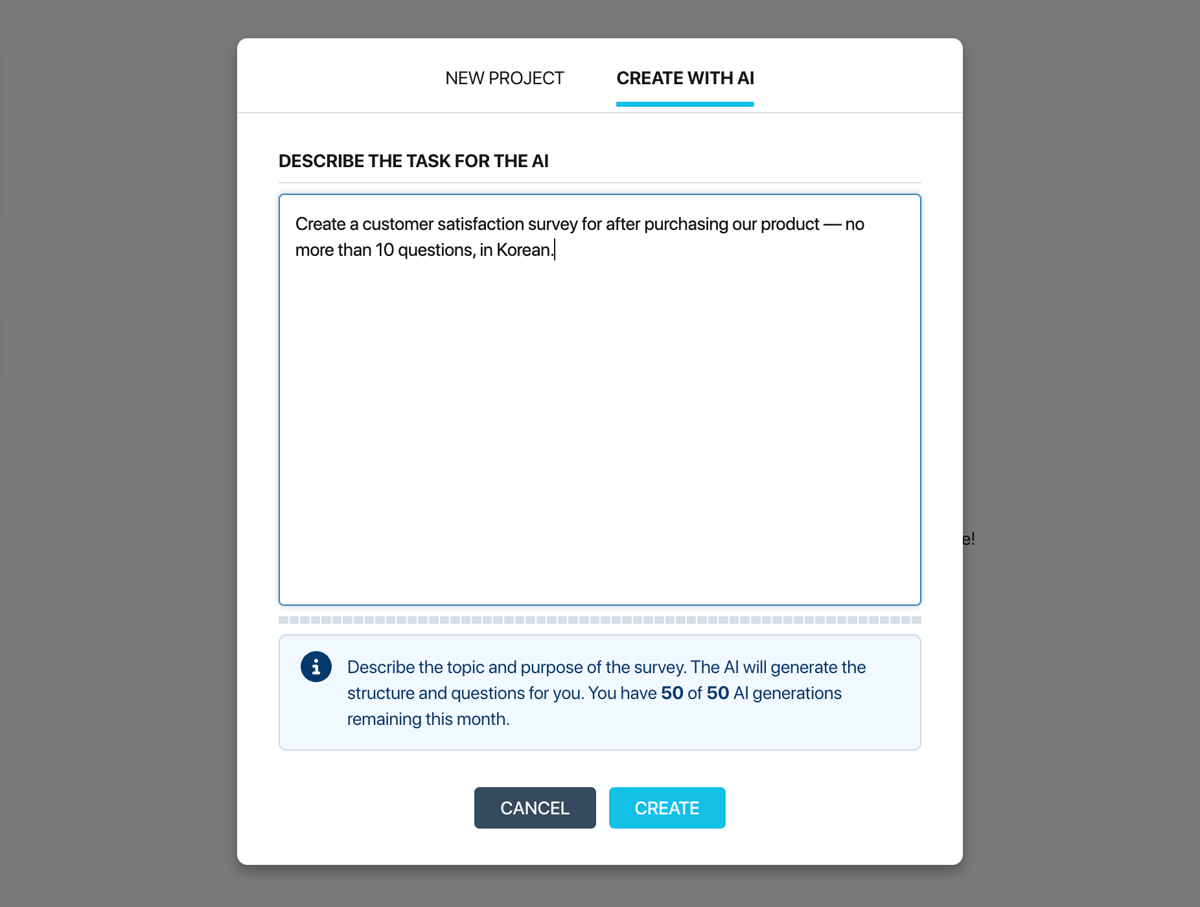
Creating with AI
Creating from a template
On the Projects page, go to the Template Gallery tab in the top navigation. Templates are grouped by category — choose the one you need in the left panel.
Click a template card to open the preview. On the left of the window is the template description; on the right, an interactive preview of the survey as the respondent will see it.
Click Use template — a copy of the template appears in the current folder of your projects. You can fully adapt it to your needs: change the questions, add logic, customize the design.
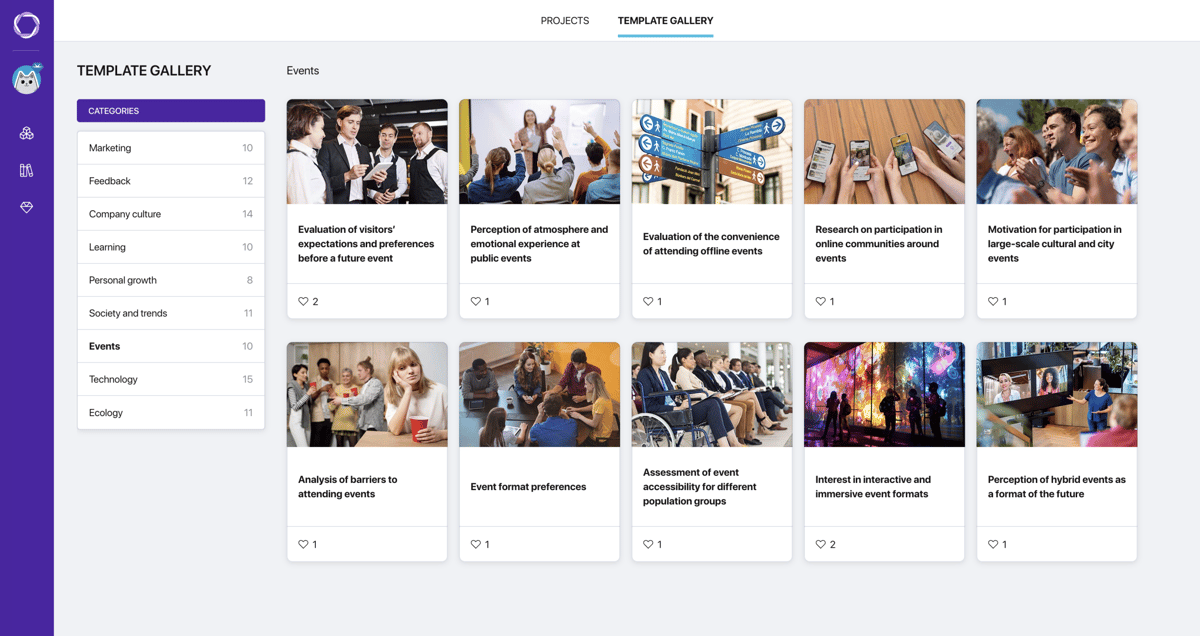
Template Gallery