Opening and closing a survey
For respondents to take your survey, it needs to be opened. Survey status is managed on the Publish tab via the banner at the top of the page.
Survey status
The banner displays the current status:
- Survey closed — the survey is unavailable to respondents. The banner suggests sharing the link and opening the survey.
- Survey open — the survey is accepting responses. The banner suggests closing the survey when data collection is complete.
The survey status is also displayed as an indicator in the builder's top navigation and on the project card in the Projects list.
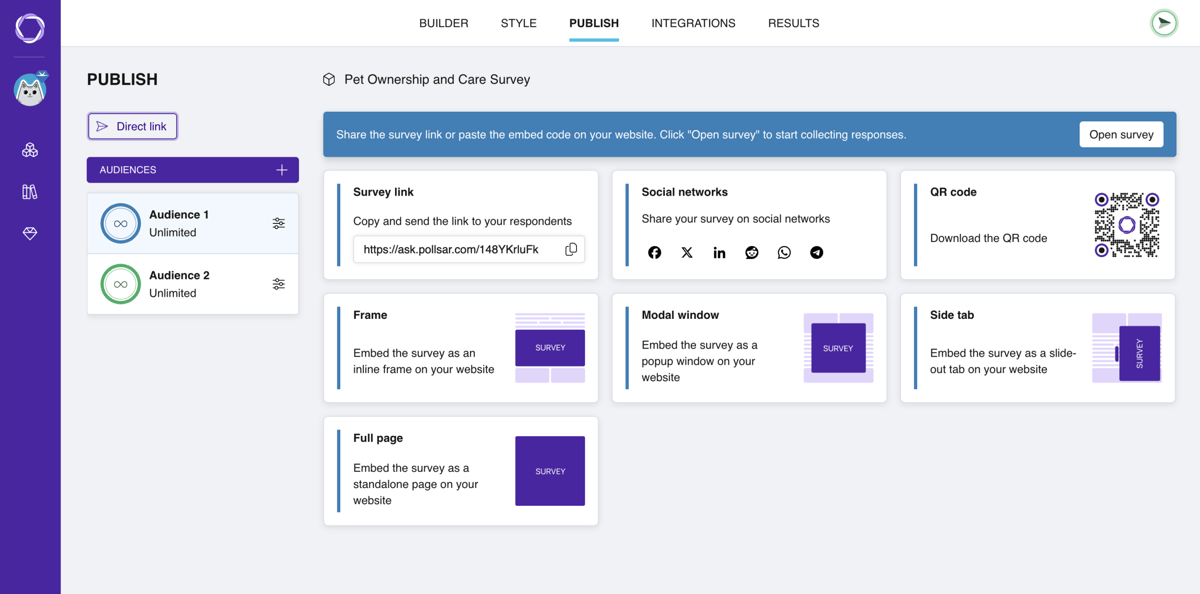
The status banner on the Publish tab
Opening a survey
Click the Open survey button on the banner. The system will ask for confirmation — make sure you have set up questions, logic, and design before launching.
Once opened, the survey becomes available via link, QR code, and other distribution tools.
Reopening
If you open a survey that already has collected responses, the system will offer two options:
- Continue collection into the current data layer — new responses will be added to existing ones.
- Create a new data layer — new responses will be recorded separately, allowing you to compare data from different collection waves.
Closing a survey
Click the Close survey button on the banner. After confirmation, the survey stops accepting responses — respondents who follow the link will see a page with a message that the survey is unavailable.
Closing the survey does not delete collected data. You can reopen the survey at any time.
Banner on other tabs
The status banner appears not only on the Publish tab:
- When the survey is closed — the banner with the Open survey button is displayed only on the Publish tab.
- When the survey is open — the banner with the Close survey button is displayed on the Builder, Publish, and Results tabs.