Illustrations in questions
Illustrations help make a survey more visual — adding visual context to a question or making answer options clearer. In Pollsar, illustrations can be uploaded both to the question itself and to answer options.
Illustrations in a question
Up to three illustrations can be added to each question. They are displayed in a row below the question title. To upload, click the image icon button in the button panel to the right of the question.
A caption can be added to each illustration — click the pen icon on the uploaded image.
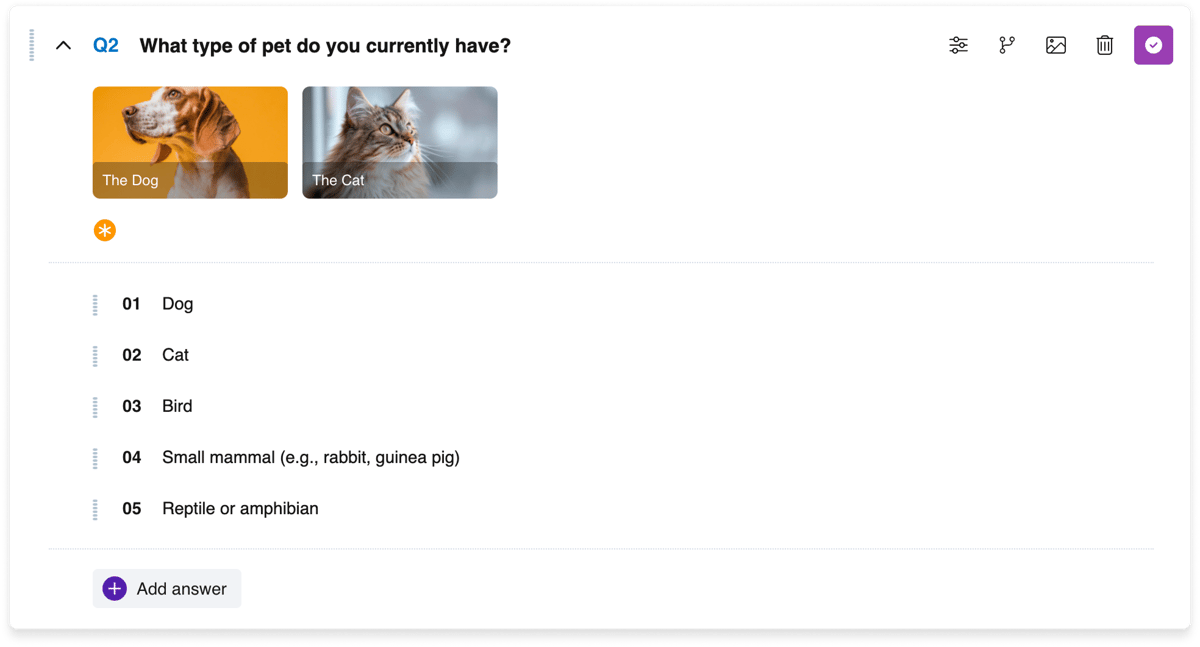
A question with illustrations in the builder
Illustration display mode
In each question's settings there is an Illustration display mode parameter that determines how images uploaded to the question are displayed. Four options:
- Cover, 16:9 — the image fills the area in 16:9 proportions, cropping edges if necessary. Default mode.
- Contain, 16:9 — the image fits entirely within the 16:9 area without cropping.
- Wide, 100% — the image stretches to full width.
- Wide, 50% — the image takes up half the width.
This parameter affects only illustrations in the question itself, not illustrations in answer options.
Illustrations in answer options
For question types with answer options (Single choice, Multiple choice, Single matrix, Multiple matrix, and others), one illustration can be uploaded per option.
An answer option can contain only text, only an illustration, or both. This allows creating visual options — for example, asking the respondent to choose from several images.
Captions for illustrations in answer options are not available.
Answer option illustrations have their own display mode, configured in the question settings separately from the question illustration mode.
Built-in editor
When uploading an image or clicking an already uploaded one, the built-in editor opens. Available tools:
- Cropping.
- Zooming (in and out).
- Rotation.
- Flipping.
- Adding a caption (for question illustrations).
After editing, click Save to apply changes or Close to cancel.
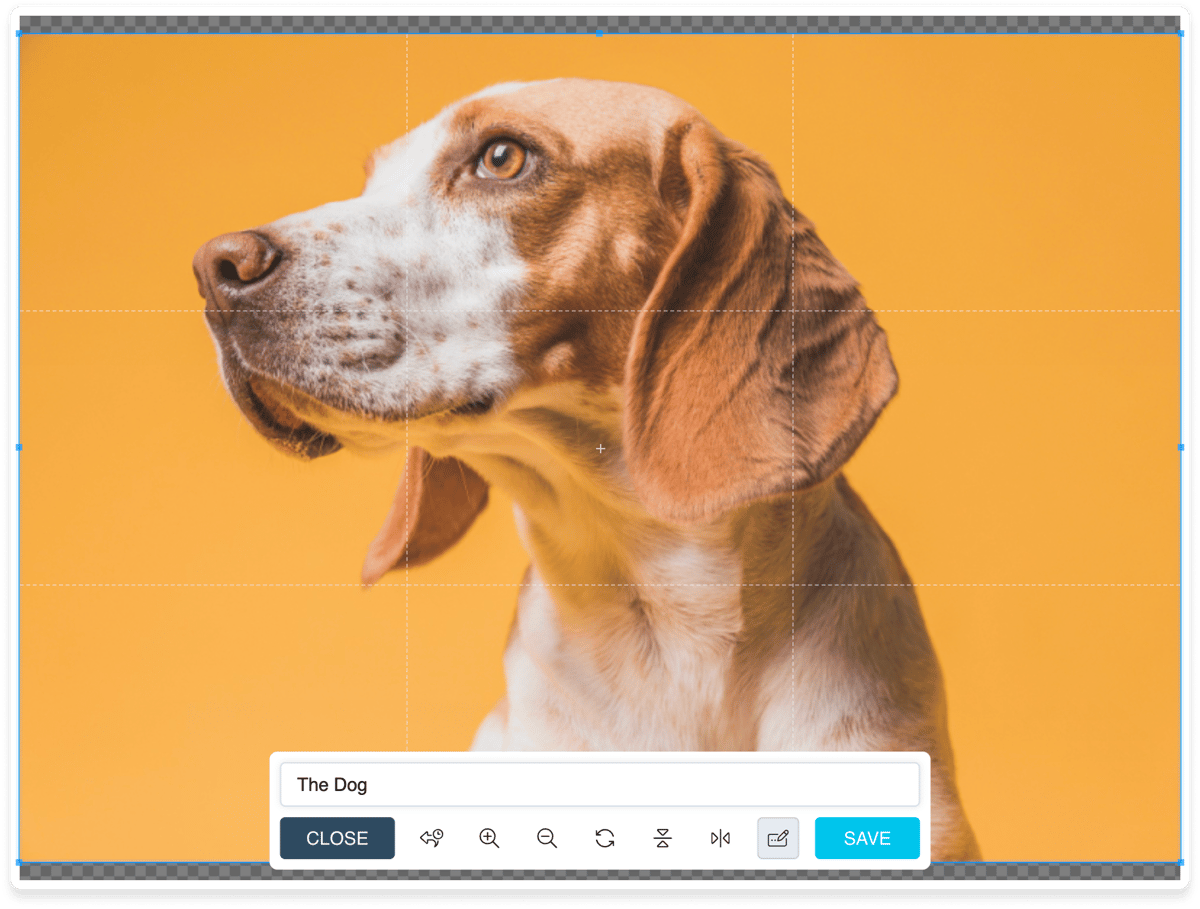
The built-in illustration editor