Adding and managing questions
This article explains how to add questions to a survey, work with question blocks in the builder, and configure their common settings.
How to add a question
Click the + button in the question area of the builder — the question type selection panel will open. All available elements are grouped into five categories:
- Choice — Yes/No, Single choice, Multiple choice, Single matrix, Multiple matrix.
- Rating — NPS®, Rating, Multiple rating, Emotions, Ranking.
- Input — Slider, Number, Text, Email, Phone.
- Data — Location, Date, File upload, Note.
- Structural elements — Group (question group), Finish page (alternative finish page).
A question can be added not only at the end but anywhere in the survey — an additional + button appears when hovering between blocks. You can also add ready-made questions from the left panel — from the template library or your favorites.
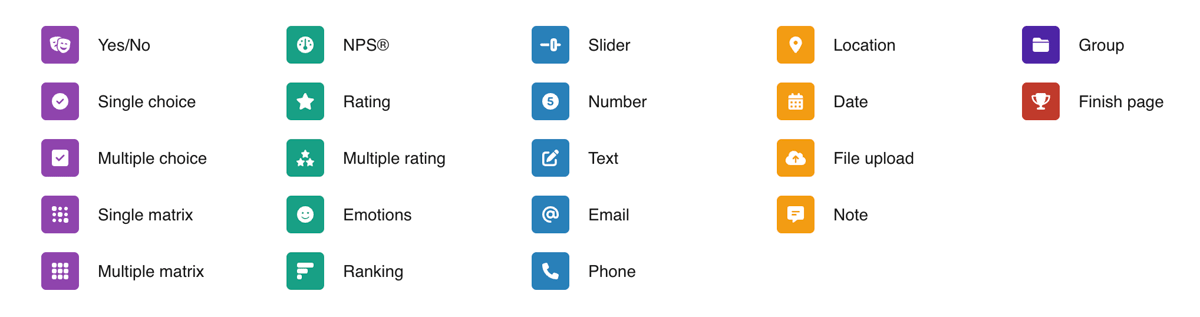
The question-type panel
Question block structure
Each question in the builder is represented as a block. From left to right:
- Drag handle — a strip for dragging the question to a different position.
- Chevron — collapsing and expanding the block.
- Number — sequential numbering (Q1, Q2, Q3... for questions, G1, G2... for groups, F1, F2... for finish pages).
- Title — the question text.
- Right button panel — question settings, branching logic, illustration upload, delete, and a colored type icon (clickable to change the question type).
Small indicator icons may appear below the title, showing which settings are active: required answer, randomization, Other option, and others.
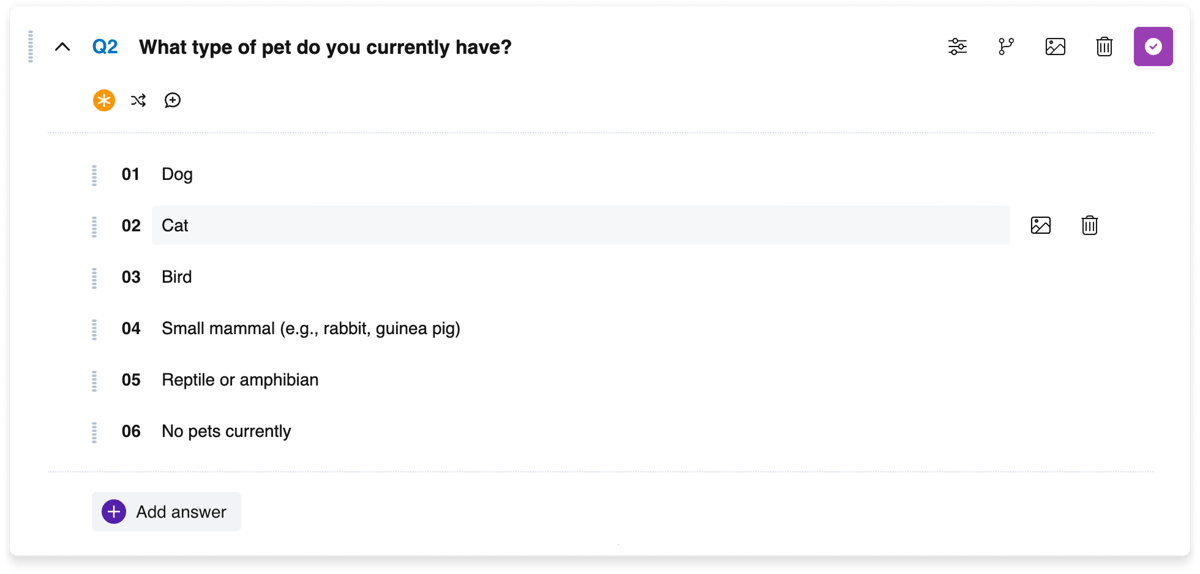
A question block in the builder
Question settings
Each question has a settings button (slider icon). It opens a window with parameters that depend on the question type. However, some parameters are common to all types:
- Description — additional text below the question title. Visible to the respondent.
- Add to Favorites — saves the question to your personal library for reuse.
- Illustration display mode — determines how images uploaded to the question itself (not to answer options) are displayed: Cover 16:9, Contain 16:9, Wide 100%, or Wide 50%.
Detailed parameters for each question type are described in the article "Question types — complete reference".
Illustrations in questions
Up to three illustrations can be added to each question — they are displayed in a row below the title. A caption can be added to each illustration.
For some question types (Single choice, Multiple choice, Matrix, and others), illustrations can also be uploaded to answer options — one per option. An answer option can contain only text, only an illustration, or both.
When uploading, a built-in editor opens with tools for cropping, zooming, rotation, and flipping.
Moving and reordering questions
Questions can be dragged between each other using drag & drop — simply grab the drag handle on the left and move the block to the desired position.

Changing the question type
The colored question type icon on the right side of the block is clickable. Click it to open the type selection panel and switch the question to a different type.