Registration and login
Pollsar uses a single entry point: both registration and login start from the same button. The system automatically detects whether you have an account and guides you through the appropriate flow.
How to register
Click the ENTRANCE button in the top right corner of pollsar.com and enter your email. If the address is not yet registered, Pollsar will offer to create an account.
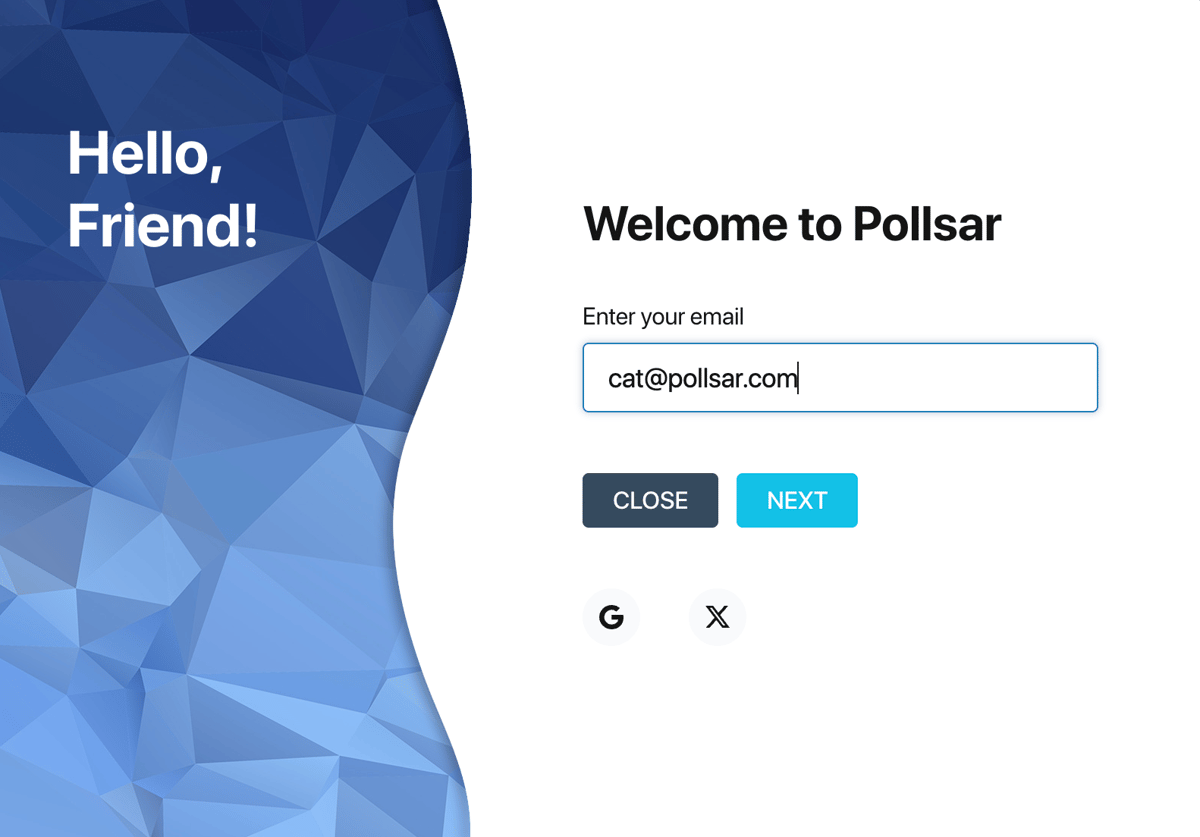
Pollsar login screen
Step 1. Fill in your account details. Choose a nickname and set a password — it must be at least 8 characters long and include both letters and numbers. Accept the Pollsar terms and policies — a link to the legal documents is next to the checkbox. Click SIGN UP.
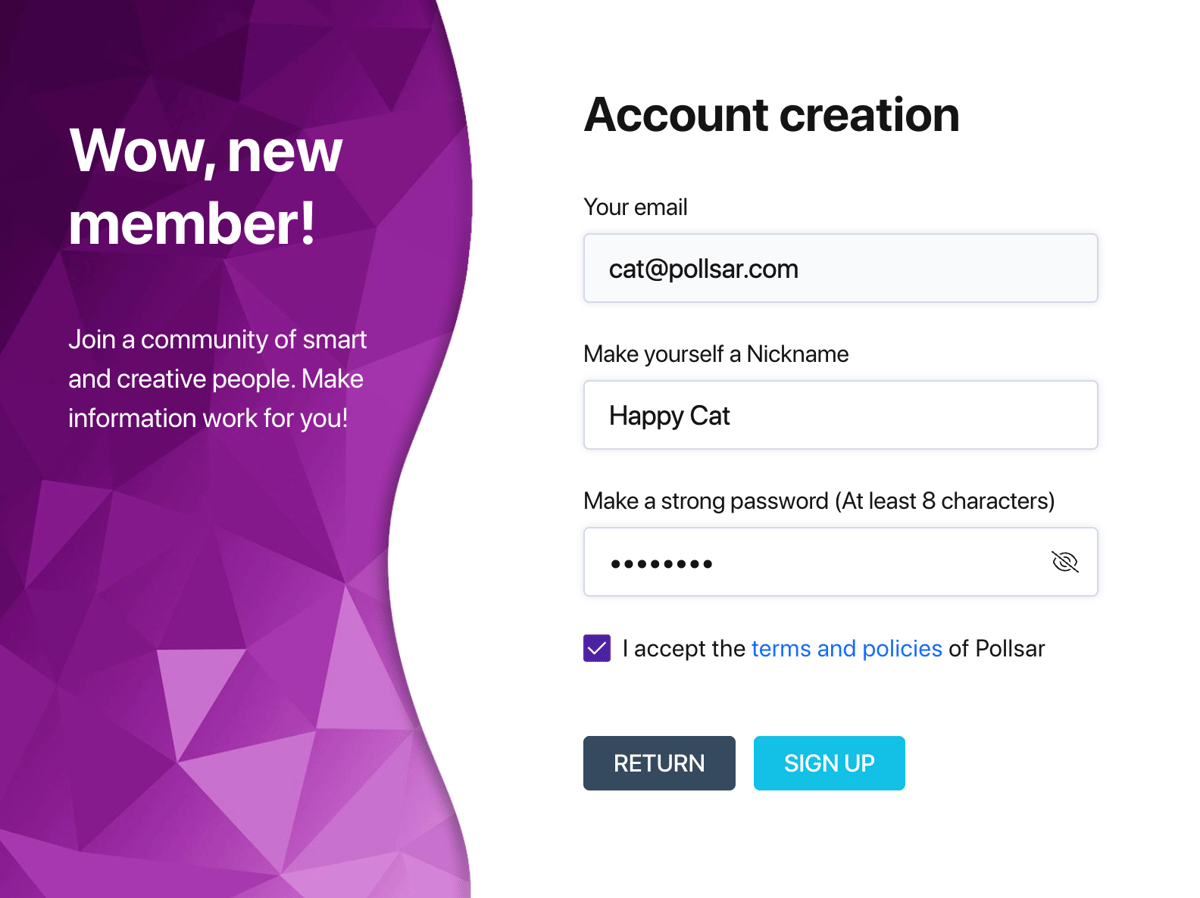
Account creation
Step 2. Verify your email. A verification code will be sent to the email address you provided. Enter the code and click CONFIRM. If the email does not arrive right away, wait until the resend button appears in the input field in place of the timer.
Step 3. You're all set! After verification you will see a welcome screen. Click LET'S GO! to proceed to workspace selection.
Step 4. Create your workspace. On the workspace selection screen, click Author Space — this is your main workspace where you will create surveys. The workspace is created instantly, and you are taken straight to your dashboard.
Quick registration via social networks
Instead of entering an email, you can register in one click via Google or X (Twitter). The social network buttons are at the bottom of the first login screen. With this method, your email and basic details are pulled automatically from your social account.
How to log in
Click ENTRANCE and enter the email you registered with. If the account is found, Pollsar will ask for your password.
Enter your password and click LOG IN. The Save my session checkbox is enabled by default — your session will be saved so you won't need to log in again on your next visit. If you are on someone else's device, uncheck this option.
After logging in, the workspace selection screen will open. Click Author Space to go to your dashboard. If you are a member of other users' teams, they will also be visible on this screen.
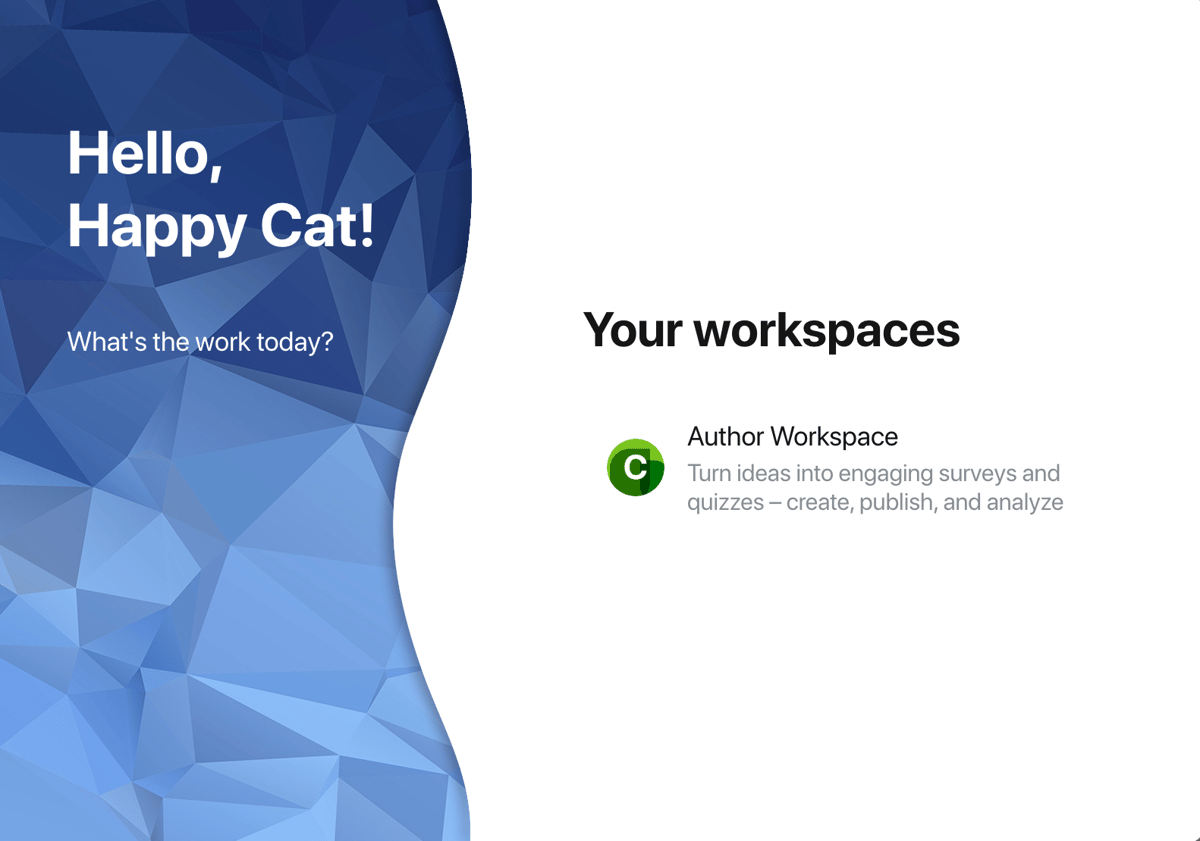
Workspace selection
Login via social networks
If you registered via Google or X — use the same social network to log in. Click the corresponding button at the bottom of the login screen, and authentication will happen automatically.
Password recovery
If you forgot your password, click the Forgot your password? link on the password entry screen. Pollsar will send reset instructions to your email.
What to do if the verification code does not arrive
If you did not receive the verification email during registration, check the following:
- Make sure the email address is correct — a typo will send the message to the wrong place.
- Check your Spam or Promotions folder — emails from new senders sometimes end up there. If you find the email there, move it to your Inbox — this will help you receive our emails without delays in the future.
- Wait a couple of minutes — delivery may be delayed depending on your email provider.
- Use the resend button when it appears in the input field.
If nothing helps, contact support at [email protected].