The “Function” block: calculations with variables
“Function” is a logic block for unconditional calculations with user variables. Unlike “Rule”, calculations in a “Function” block are always executed, without checking any conditions. In the builder interface, the block is marked with a green vertical line on the left.
The “Function” block is available only if the project has at least one user variable.
“Function” block structure
The block consists of one or more expressions. Each expression contains three fields:
- Variable — selection of the user variable to perform the operation on.
- Operation — what to do with the variable.
- Value — a number, text, or answer to a question (depends on the selected operation).
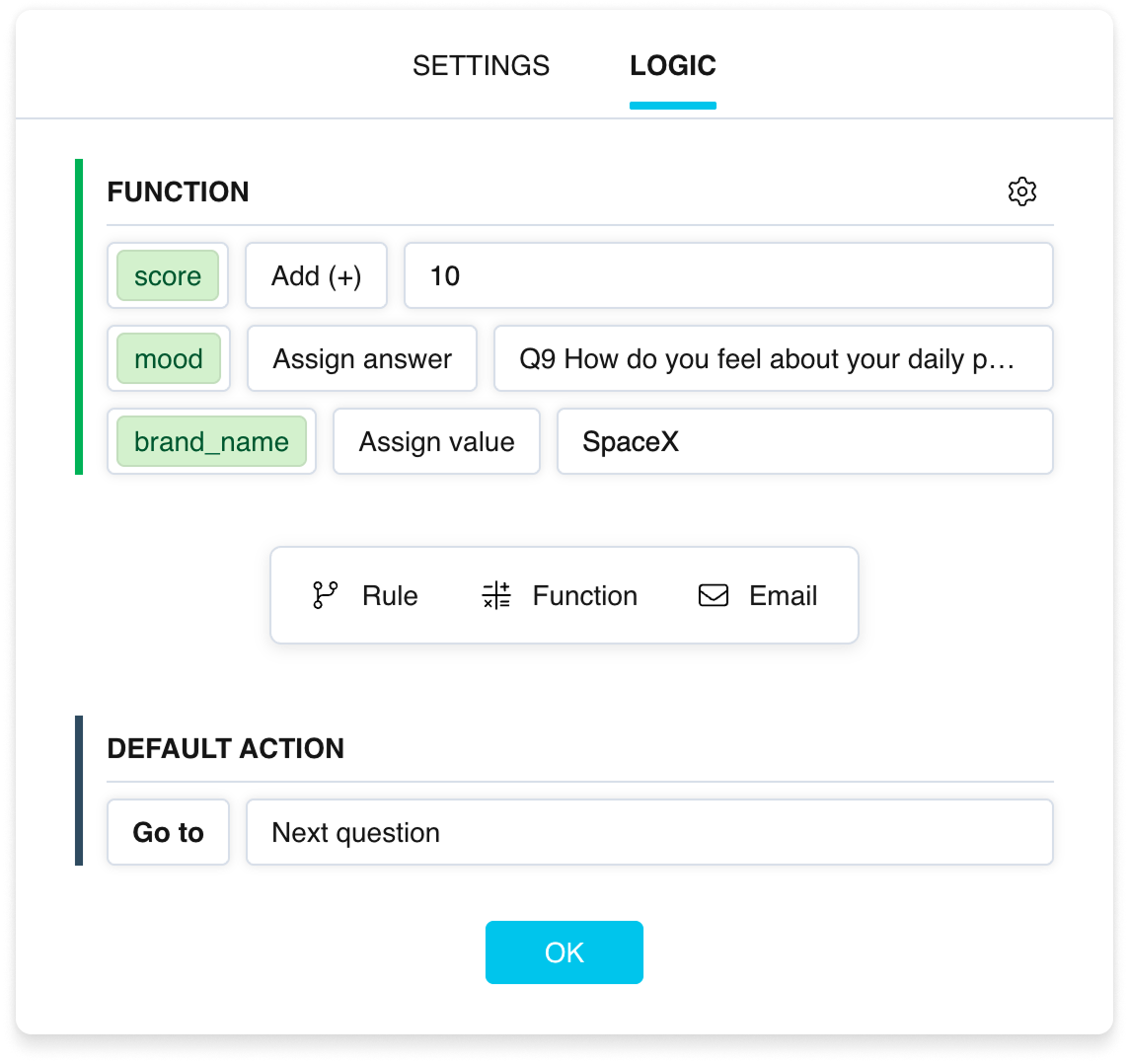
A “Function” block in the logic settings
Available operations
- Add (+) — add a value to the current variable value.
- Subtract (−) — subtract a value from the current variable value.
- Multiply (×) — multiply the current variable value by the specified value.
- Divide (÷) — divide the current variable value by the specified value.
- Assign value — assign an arbitrary value (number or text) to the variable.
- Assign answer — assign the respondent's answer to a specific question to the variable. The dropdown list includes all questions up to and including the current question.
Conditional calculations in a “Rule” block
Calculations can be run not only unconditionally but also conditionally — via the “Function” action inside a “Rule” block. The mechanics are identical to the “Function” block, but the operations run only when the “Rule”'s conditions are true. See more in the article about the “Rule” block.
Managing a “Function” block
The context menu (gear icon) provides:
- Add expression — add another expression row to the block.
- Move up / Move down — change the block's execution order among the other logic operations.
- Delete function — delete the entire block.
To delete an individual expression, click the first dropdown in its row and select Delete expression at the very bottom.
Usage example
You create a quiz with score counting. The variable score has an initial value of 0. After each question, a “Function” block adds points to the score variable for correct answers. On the final page, the value {score} is displayed to the respondent as the total result.