Knowledge Base

The “Email” block: sending messages
The “Email” block (its header reads “Send email”) sends an email message unconditionally. The message is sent automatically at the moment the logic is processed, without checking any conditions. In the builder, the block is marked with a blue vertical line on the left.
The “Email” block structure
The block contains three fields:
- Recipient — the email address the message will be sent to. The address is selected from a dropdown list (manual entry is not possible). Available in the list: the author's email (login), the author's notification email (configured in profile settings), team members' emails, and the respondent's email — if the survey contains an Email question.
- Subject — a text field.
- Message body — a text field with formatting support (bold, italics, underline, strikethrough) and variable insertion. Variable values are substituted at the time of sending.
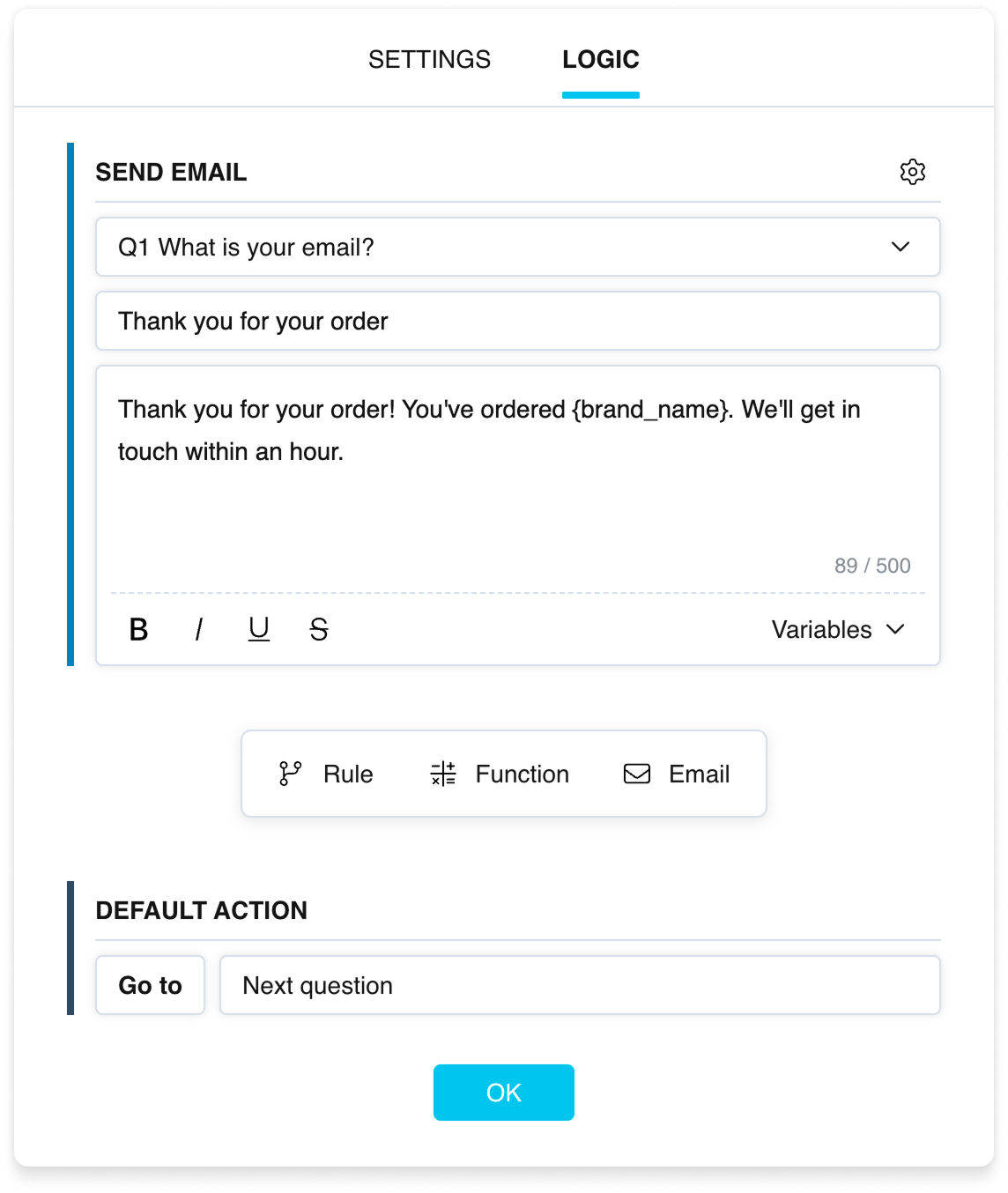
The “Email” block in the logic settings
Usage examples
- Author notification — send a message to the survey author when the respondent reaches a specific question (for example, after completing a key section).
- Respondent message — send a personalized message to the respondent's email with results or recommendations, using variables in the text.
- Team alert — notify a team member about a new completed response.
Managing the “Email” block
The context menu (gear icon) provides:
- Move up / Move down — change the block's execution order among the other logic operations.
- Delete email — delete the entire block.